

Users and roles
The owner, admins, members, and managing users.
Appflare has two roles, admin and member, and one owner.
| Role | Can |
|---|---|
| Owner | Everything an admin can, and also change other users' roles, delete users, and transfer ownership. There is exactly one owner, and the owner is always an admin. |
| Admin | Everything else: install, update, roll back, and uninstall apps, update Appflare, change how Appflare connects to Cloudflare, set the account's Workers plan, and add users. |
| Member | Read everything: installed apps, the catalog, jobs, and logs. Change nothing except their own passkeys. |
The first user, created in the setup wizard, is the owner. On a manager set up before owners existed, the admin who was created first becomes the owner when Appflare updates.
Members see What this account can run and the Workers plan in Settings > Your account but cannot change them. Only an admin can select Check again, choose the plan, or tick Remember this for the account while installing or updating. A recorded plan applies only when Appflare cannot detect it; recording Workers Paid lets later installs skip the Workers Paid confirmation, so set it only when the account really is on Workers Paid.
Add a user
Appflare has no email provider, so there are no invitations. Instead:
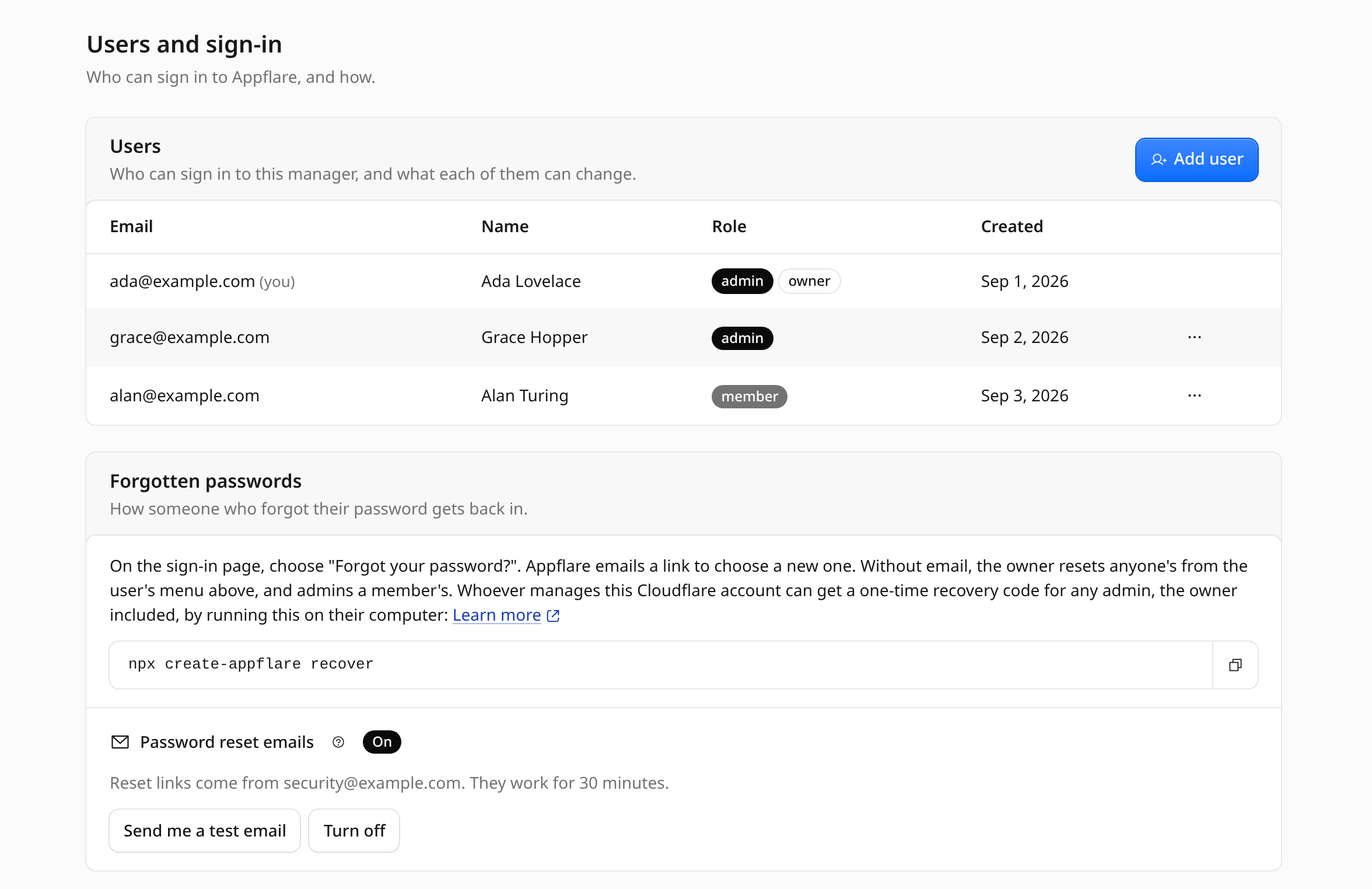
- Open Settings > Users and sign-in > Users and select Add user.
- Enter an email and a name, and pick Member (read only) or Admin.
- Select Create user. Appflare shows a temporary password once.
- Copy it and give it to the person. Appflare stores only a hash; closing the dialog discards the password.
People sign in at /login with their email and password. Nobody can sign up on their
own. Someone who forgets their password resets it from the sign-in page; see
Forgot your password. The owner can also pick Reset
password in any other user's row menu, and admins in a member's.
Change a role or delete a user
Only the owner can do this. Admins see the list of users without these actions, and members do not see the list.
- Open Settings > Users and sign-in.
- Open the menu at the end of the user's row.
- Pick Make admin or Make member and confirm. The new role applies on the person's next click.
- Or pick Delete user, type the person's email, and select Delete user. Appflare deletes their account, password and passkeys and signs them out everywhere. Installed apps, jobs and settings do not belong to a user and stay.
The owner's own row has no menu: the owner cannot be made a member or deleted. To step down, transfer ownership first.
With Cloudflare Access protection on, a new admin is added to the Access policy, and a user who stops being an admin, or is deleted, is removed from it. If that update fails, Appflare says so; use Re-sync admins under Cloudflare Access.
Apps protected with Cloudflare Access let in every user, members included, through one Access policy, "Appflare users". Adding or deleting a user updates it. If that update fails, Appflare says so and tries again within 30 minutes.
Transfer ownership
Ownership can go only to an admin. Make the person an admin first if they are a member.
- Open Settings > Users and sign-in.
- Open the menu at the end of the admin's row and pick Transfer ownership.
- Type their email and select Transfer ownership.
They become the owner and you stay an admin. Only the new owner can give ownership back.
Passkeys
Every user, members included, can add passkeys to their own account. A passkey signs you in with your fingerprint, face, screen lock, or a security key instead of your password. Your password keeps working.
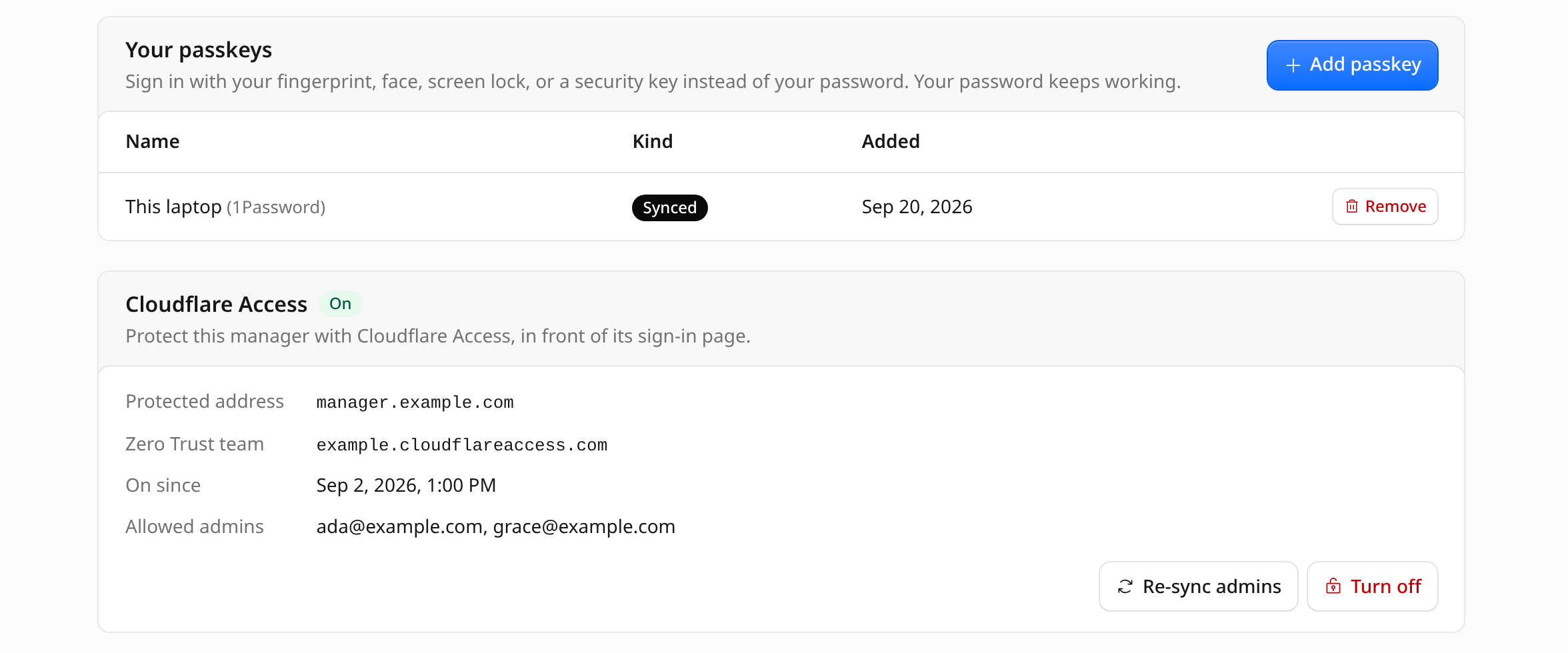
- Open Settings > Users and sign-in and find Your passkeys.
- Select Add passkey. Name it after the device or password manager that keeps
it, for example
Work laptop, so you can tell your passkeys apart. - Select Create passkey and follow your browser's prompt.
The list shows each passkey's name, whether it is synced across your devices or kept on this device only, and when it was added. To remove one, select its remove button and confirm. Delete it from your device or password manager as well.
To sign in with a passkey, select Sign in with a passkey on the login page.
A passkey belongs to the manager's address. One added while you used
https://appflare.<your-subdomain>.workers.dev does not work on another hostname.
After Appflare moves to a domain, the list marks each
passkey added at an address Appflare has left with Works at and that address.
Your browser offers it only there; add a new passkey at the current address.