

Update and roll back
Updating an app, rolling it back, and restoring a database to an earlier point.
When an update is available
When the catalog has a newer version of an app than the one installed, Home lists it under Needs attention, the app's card says Update available, its row in the sidebar gets a blue dot, and the app's page shows Update available to <version>. The manager compares versions every time you load a page, against the catalog it refreshes every 30 minutes. It only offers the catalog's current version.
On Home, admins select Update on the app's row. With two or more updates that need nothing from you, Update all starts them together. An update that needs your approval (an app built in your account), or one that failed or was rolled back before, shows Review instead, which opens the app's page.
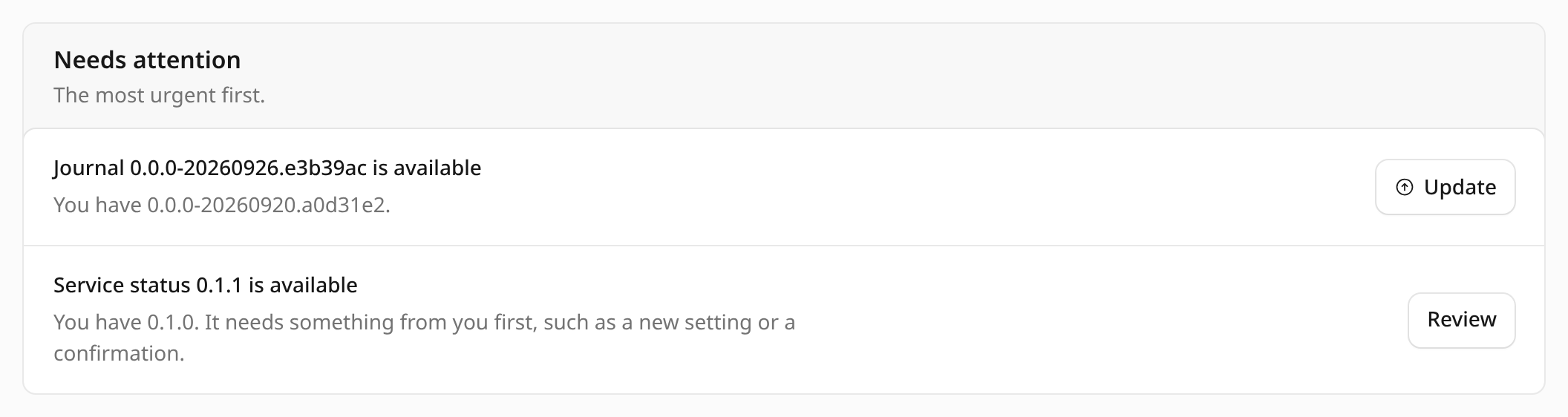
Update an app
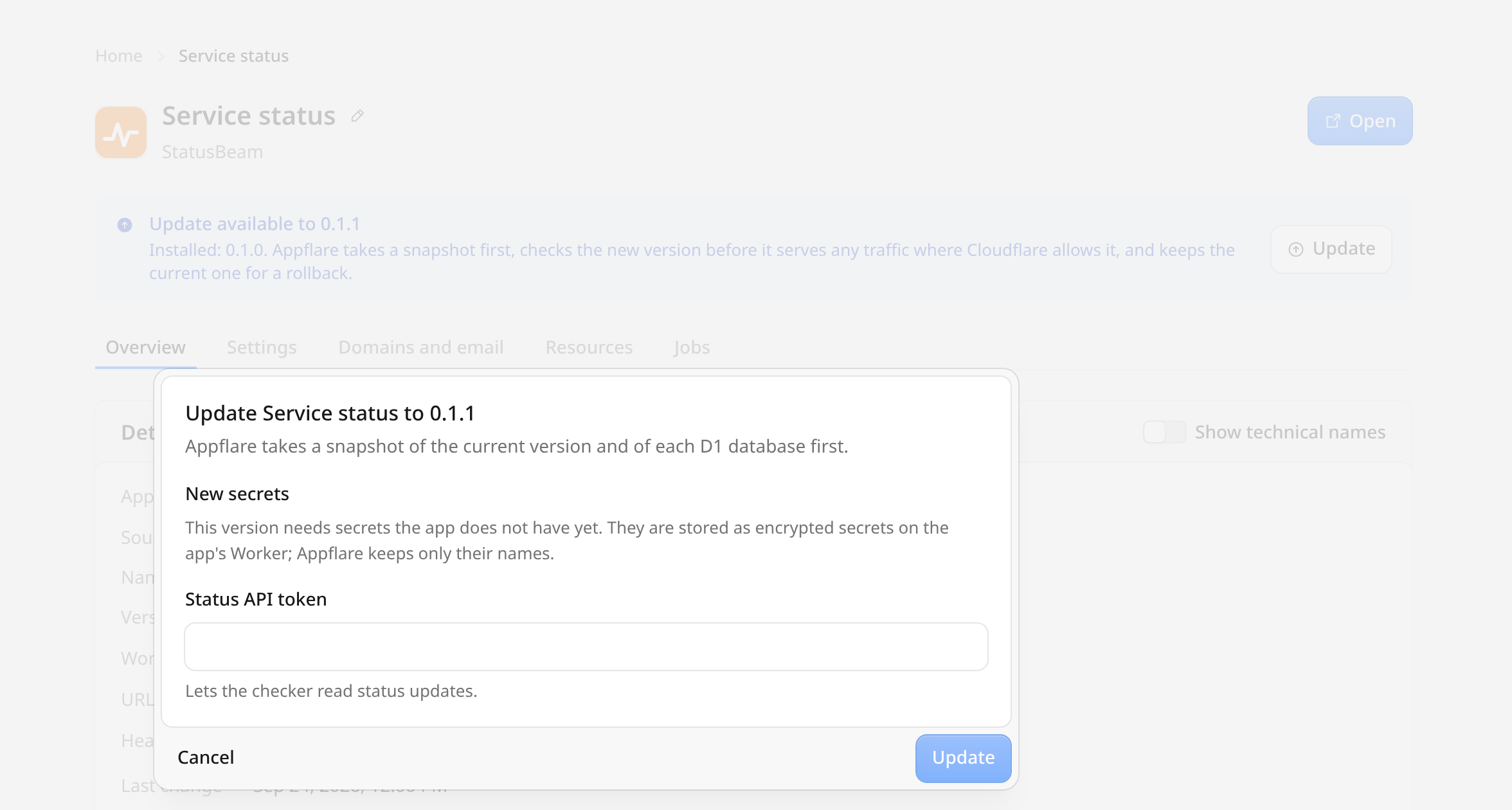
Admins select Update. A dialog opens first when:
- the new version needs secrets the install does not have yet. Fill them in; the job sets them before the new version serves traffic. An optional secret the new version adds is never asked for; set it in the app's settings if you want it.
- the new version keeps data in a database elsewhere that the app did not use before. Enter its connection string, as you would at install; the dialog checks it the same way, and Appflare never stores it.
- the new version streams events through a stream the app did not have before. Its sink writes with the R2 API token the app keeps in a secret, and Cloudflare never hands a secret back, so the dialog asks for that token, even when the app already has it. Enter its current value to keep it, or a new one to replace it.
- an earlier update connected a database that the version the app runs now does not use (that update failed, or you rolled it back). The dialog offers to replace its connection string. Leave the field empty to keep the connection, or enter a new string: the update creates a new Hyperdrive configuration from it and binds that one. The app's settings cannot do this, because they list only the databases of the version that runs now.
- the app defines Durable Objects, so the new version cannot be checked before it goes live. This covers every update of such an app, and it matters most when the new version changes its Durable Object classes (see Apps with Durable Objects below). The dialog says which case applies. You confirm with Update without checking the new version first.
- the new version receives other email than the installed one. The dialog says which addresses change and whether the catch-all changes on the app's domain; selecting Update confirms it. See Updates and rollbacks.
While an app is paused, updates and rollbacks are refused: resume it first. A new version would run the app again without anyone resuming it.
The update job:
- Fetches and verifies the new version's signed manifest.
- Takes a snapshot: the Worker version serving traffic now, and a D1 Time Travel bookmark for each of the app's databases. It refuses to start while a gradual deployment is in progress.
- Creates resources for bindings the new version adds: a Hyperdrive configuration for a new database, from the connection string you entered, and a stream with its sink, pipeline and, when needed, its bucket and Data Catalog. An update never deletes a resource: one the new version no longer uses stays in the account, recorded with the app, until you uninstall it.
- Uploads the new assets and the new Worker version, keeping the existing secrets. The current version keeps serving.
- Checks the new version at its preview URL before any traffic reaches it. A server error, or a health path that reports a different version, fails the job here and nothing changes. When Cloudflare Access answers the preview URL with its sign-in page, the new version cannot be checked; the log says so and the job goes on.
- Applies new D1 migrations.
- Switches all traffic to the new version.
- For an app that receives email, sets up the routing rules and catch-all the new version adds and removes the ones it no longer needs, on the app's domain (see Updates and rollbacks). A part it cannot do is noted in the job log; the update still finishes, and Set up email again finishes it later.
- Runs a health check and records the result.
The current version keeps serving until the new one has passed its checks. If the job fails before step 7, the app is unchanged, except for new resources and any D1 migrations already applied. New resources stay recorded, so the next attempt uses them: a database's configuration needs no connection string again, and a stream left without its sink or pipeline gets the rest (the dialog asks for the token again only when the sink is missing).
An update cannot change a stream once it exists: a version that changes a stream's schema, or the table it writes to, needs a fresh install. This holds for a stream an earlier update made too, even when the version the app runs now does not use it: the update reads the stream and its sink from Cloudflare and compares them.
An update keeps the app's settings, its secrets, its custom domains and the Serve on workers.dev choice. To change settings or secrets without updating, see Change an app's settings.
Apps of several Workers
For an app of several Workers, the job works on all of them as one app. The snapshot holds the serving version of every Worker, together with the D1 bookmarks. Each Worker's new version is uploaded and checked at its own preview URL, D1 migrations run before any Worker switches, and then the Workers switch to their new versions one at a time, with the app's own Worker last. A rollback returns every Worker to its version in the snapshot. On Workers Free, the job of an app with many Workers pauses for 5 minutes now and then to get a fresh allowance of requests from Cloudflare, as its install did. It never pauses while the Workers switch: it waits before the switch instead, so that all of them move to the new version within seconds of each other, and the same holds for a rollback, for undoing a failed update, and for the preview and health checks, whose probes run back to back. The one exception is a rollback of an app of 24 Workers, the most an app may have: its switch may wait for a fresh allowance halfway, leaving the Workers on mixed versions for a few minutes.
A Worker the app keeps off workers.dev has no preview URL, so its new version is
not checked before it switches. When a new version changes whether a Worker is on
workers.dev, the Worker leaves it before the version that keeps it private is
uploaded (and gets it back if the update fails before the switch), and comes back
only once the version that wants it serves; a rollback does the same in the other
direction.
An update cannot add a Worker to an installed app, because the manager keeps no secret values to give the new Worker: the job refuses such a version before anything changes, and the app has to be installed again to get it. A Worker a new version no longer has stays in place until the app is uninstalled.
Apps with Durable Objects
Cloudflare gives no preview URL to a Worker that defines Durable Objects, so updates
of such apps skip step 5. When a new version also changes its Durable Object classes
(a migration, or a change to the classes its wrangler exports declare), Cloudflare
applies that only when the whole Worker is deployed at once. The job then deploys
directly, and the change to the classes cannot be undone with a rollback.
Once an app's exports declare a Durable Object class, Cloudflare refuses every
later version that does not, including one that goes back to migrations. The job
refuses such a version before anything changes; the app's config has to keep
declaring the class in exports, or mark it "state": "deleted" there to retire it.
Automatic updates
Under Settings > Updates > Automatic app updates, admins can turn on Automatically update apps. It is off by default. Each app's page has an Automatic updates choice: use the account setting, or turn automatic updates on or off for that app.
When automatic updates are on for an app, the cron checks every 30 minutes whether the catalog has a newer version. It starts the update on its own only when that version needs nothing from you:
- no value for a secret the new version adds, and no token for a new stream,
- no connection string for a database the new version adds,
- no confirmation that the new version cannot be checked before it goes live,
- no Workers Paid confirmation for more cron triggers,
- no build or installer run to approve (apps built in your account never update on their own),
- no change to the email the app receives (its routing rules or catch-all).
Anything else waits for you on the app's page, as described above, and the cron does not try that version again; it tries the next one the catalog publishes. An automatic update runs the same job, with the same snapshot and checks. The cron starts at most three app updates per run. It does not try a version again after its update failed, or after you rolled the app back from it. The app's job list and the job's page show Automatic under Started by for jobs the cron started, and Admin for the others. To hear about updates that wait for you, or about automatic updates that finished or failed, add a notification channel.
Roll back
Each update and each settings change adds a row under Versions on the Jobs tab of the app's page: when the snapshot was taken, the catalog version, and the Worker version. Select Roll back on a row to deploy that Worker version again to all traffic, with the settings and secrets it had then. A rollback runs as a job and ends with a health check. If automatic updates were on for the app, the rollback turns them off, so the cron does not install the version you left again; turn them back on on the app's page once a fixed version is out.
A rollback changes the Worker, its settings and secrets, and for an app that receives email its routing rules and catch-all, which follow the version it returns to (see Updates and rollbacks). Databases are not changed. If the newer version changed its data, the older code may not read it. Restore a database separately if you need its data as it was. A rollback does not move an app's email back to another zone; see What a rollback puts back.
Resources an update created stay too. Rolling back from a version that added a database or a stream leaves its Hyperdrive configuration, or its stream, sink and pipeline, in place; the older version simply does not use them, and updating again uses them as they are. A later version that describes the stream differently is refused, as above.
Rollback is not offered across a change to the app's Durable Object classes: Cloudflare refuses to roll a Worker back across such a change.
Restore a database to a bookmark
Each snapshot holds a D1 Time Travel bookmark for every database of the app. On a snapshot's row, select Restore <database> to this point, type the database name to confirm, and select Restore database.
Everything written to that database since the snapshot is replaced. The Worker is
not changed. Cloudflare returns a bookmark of the database from just before the
restore; the manager shows it with the wrangler d1 time-travel restore command that
undoes the restore.
D1 keeps Time Travel history for 7 days on Workers Free and 30 days on Workers Paid. Older bookmarks cannot be restored.