

Change an app's settings
Change an installed app's settings, rotate or remove its secrets, move its email to another zone, and what a rollback puts back.
An installed app's page has a Settings tab. Admins use it to change the app's settings and secrets, and the zone it receives email for, without reinstalling it. Members see the same tab but cannot change anything.
The tab lists what the installed version declares, with the labels and help text from the catalog. Change what you need, then select Save and redeploy. The manager starts a settings change job and opens its live log. Discard changes puts the form back as it was.
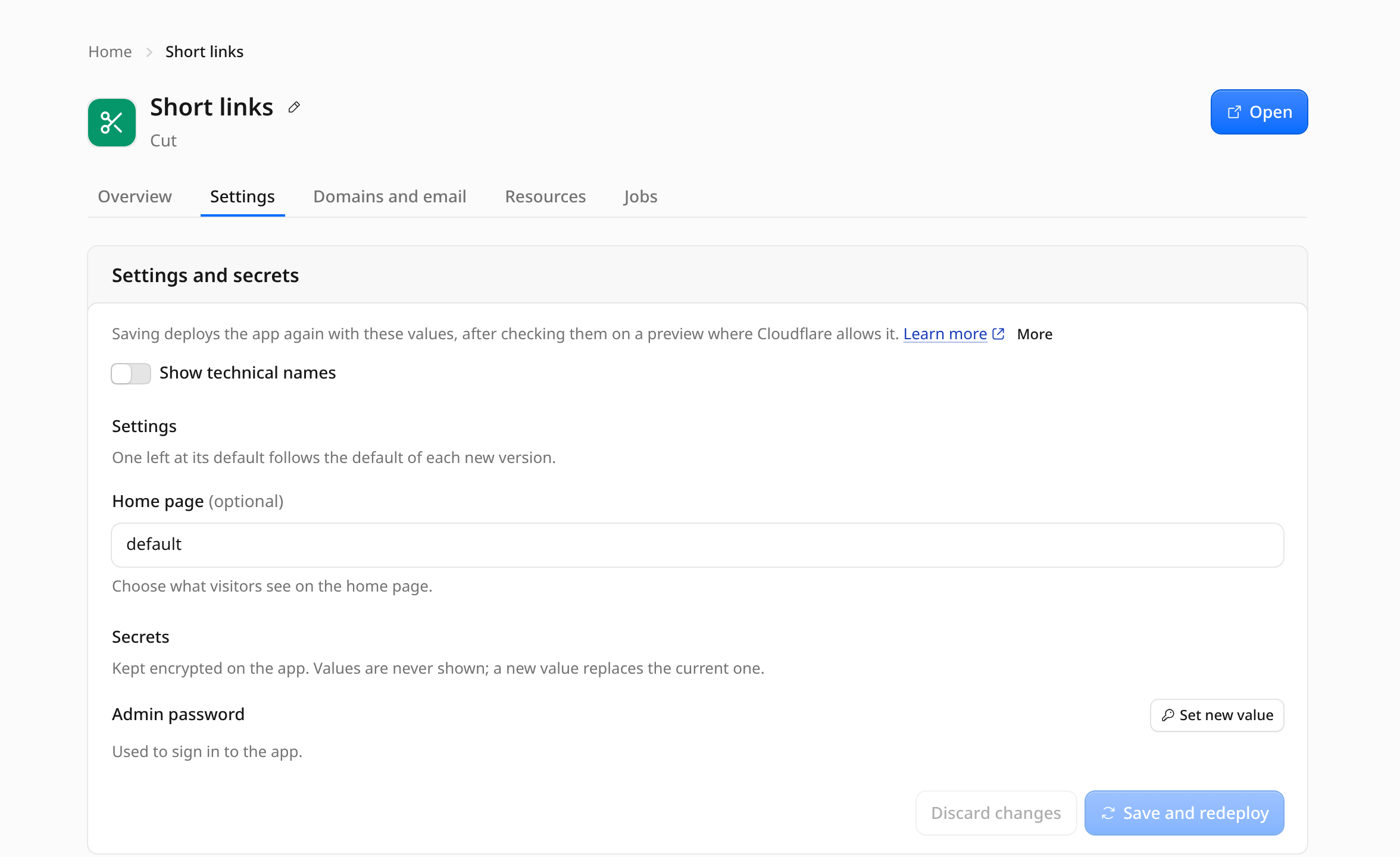
Saving is refused while another job of the app is queued or running, while Appflare updates itself, and while the app is paused. While a job of the app runs, the tab says so, with View log to follow it.
For an app of several Workers, a changed setting or secret is applied to each Worker of the app that gets it.
Settings
Settings are variables on the app's Worker. They work as on the install form:
- A setting left at its default follows the default of each version, also after later updates. Only settings you change are stored.
- Settings marked JSON take a JSON value, which the form checks before you can save.
- A setting with a fixed set of values shows them as choices. If a newer version no longer offers the value you chose, the app gets the version's default instead, the job log says so, and the Settings tab asks you to choose again before saving.
- A default that names the app's own address (
{{appUrl}}) is filled in with the address the app is reached at: itsworkers.devURL, or its custom domain while workers.dev is off. When that address changes, Appflare deploys the app's settings again so they follow. A default that names{{workerUrl}}always gets theworkers.devURL.
Rotate a secret
Secret values are never shown, not even to admins. To replace one:
- Select Set new value next to the secret and enter the new value. For a secret the app generates, the field is filled with a fresh random value; copy it now, as it is shown only here and cannot be read back once saved. A secret of several lines, such as a PEM private key, gets a text area that keeps its line breaks; what you paste shows until you save. Keep current value undoes the change. A new value also replaces what Appflare derives from the secret, such as the read-only public key setting of a VAPID private key.
- Select Save and redeploy.
The current value keeps serving until the new version takes over. Once the job has finished, revoke the old value where it came from (an API key, a password). A secret marked Not set has no value Appflare set; give it one the same way.
Rolling back to a snapshot from before the change brings the old value back (see What a rollback puts back). If you revoked it, the rolled-back app gets a value that no longer works.
Remove a secret
Two kinds of secret can be removed:
- Optional secrets, which the app works without. They are left unset at install when their field is left empty, and updates never ask for them. One that is not set shows Not set; give it a value with Set new value.
- Secrets the app no longer uses. Updates never delete secrets, so a secret an earlier version needed stays on the Worker after a newer version stops declaring it. The Settings tab lists it with Not used by this version.
Select Remove next to the secret (it then shows Will be removed) and Save and redeploy. A secret the installed version needs can be replaced, never removed.
Move email to another zone
For an app that receives email, the tab shows the zone it receives email for. To change it:
- Select Receive email for another zone and choose the zone. Appflare inspects it with the same checks as an install, before anything changes.
- Select Save and redeploy.
The job sets up the routing rules on the new zone first, then removes those on the
old zone the way an uninstall does, including
turning Email Routing off there if this install turned it on and nothing else uses
it. Routing rules name the Worker, not a version, so moving email alone deploys
nothing, unless the app's settings use the domain (an address such as
accounts@example.com): then they are deployed again with the new domain, checked on
a preview first like any settings change.
If removing the old zone's rules stops part way, the tab shows Moving email did not finish with the zones that still have rules. Select Finish moving email: it checks the new zone again and removes what is left, without deploying the Worker.
If an update or a rollback left part of the app's email out, the tab shows Part of the app's email is not set up, with Set up email again for admins; see Set up email again.
What the job does
- Checks that the version the app runs, and its resources, still fit together. The job refuses to start when the Worker lacks Durable Object migrations its version declares; update or reinstall the app first.
- Takes a snapshot, as an update does: the Worker version serving traffic, a D1 Time Travel bookmark for each database, and the settings before the change. It shows under Versions on the app's page.
- Uploads the version the app runs again, never a newer one, with the new settings and every binding as before. The existing secrets carry over.
- Sets and removes secrets on that new version, before anything serves it. Secret values never appear in the job's record or its log; only their names do.
- Checks the new version at its preview URL, as an update does. Cloudflare gives no preview URL to a Worker that defines Durable Objects, so for such an app the form shows No preview check for this change and asks you to tick Save without checking the new settings first.
- Switches all traffic to the new version and records the settings and secrets.
- Moves email, when you asked for it, then runs a health check.
Steps 2 to 6 run only when settings or secrets change. Until step 6, the current version keeps serving and nothing the app serves changes. A job that fails after it set secrets but before step 6 puts the serving version's secrets back on the Worker's newest version, because Cloudflare copies the newest version's secrets into the next upload. The log says so.
Apps built in your account
An app built by your sandbox Worker is redeployed from the build the sandbox Worker stored, without building again. Its settings can only be changed while the sandbox Worker is connected.
A self-deploying app changes differently: its own installer runs again at the installed commit, with the new settings and secrets. New secret values are stored on the sandbox Worker first. You confirm the cost of the installer run before saving, as for an update. Its secrets can be replaced but not removed, since the installer sets them on its own Workers. The installer changes the app in place: there is no snapshot, so such a change cannot be rolled back.
What a rollback puts back
Each settings change adds a row under Versions, on the app's Jobs tab, just as an update does. Select Undo on it to go back to the version that served before the change (see Roll back). When the app has been updated since, the row offers Roll back instead, since going back also changes its code.
A rollback puts back:
- the Worker version that served before the change,
- the settings recorded with the snapshot,
- the secrets that version had, with the values it had: a rotated secret gets its old value back, a removed secret comes back, and a secret added since is gone. The app's list of secrets follows.
- for an app that receives email, the routing rules and catch-all that version asks for, on the zone the app receives email for now (see Updates and rollbacks).
A rollback does not change:
- Databases. Restore one from the snapshot separately if you need its data as it was.
- The email zone. A rollback does not move email back to the old zone. Move it under Settings again if you need to.
- A self-deploying app, which has no snapshots.
Snapshots taken before Appflare recorded settings leave the settings as they are. If automatic updates were on for the app, a rollback turns them off; see Automatic updates.
Update and roll back
Updating an app, rolling it back, and restoring a database to an earlier point.
Notifications
Send messages about updates, jobs, failing health checks, unusual usage, paused apps and external domains to Telegram, Slack, Discord or your own webhook, and verify a webhook's signature.