

Update Appflare
How the manager updates itself, and how to go back.
The manager checks its release feed, github.com/appflare/appflare/releases, every 30 minutes. It only considers complete, published releases with a valid signature.
Update from Settings
Open Settings > Updates and find Appflare version. It shows the running version, the latest release, and when it last checked. Admins can select Check now to look for a release right away.
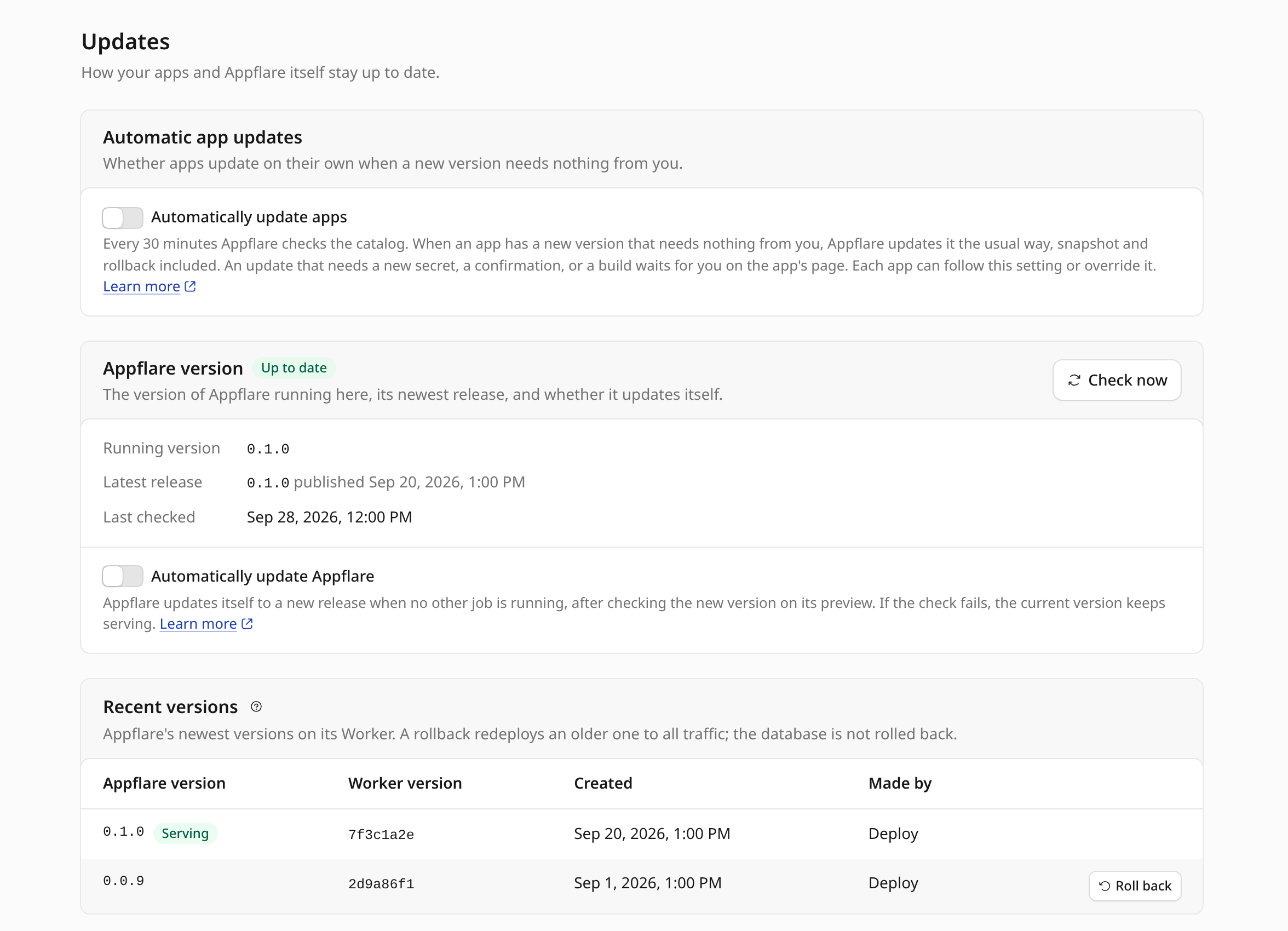
When a newer release exists, select Update Appflare to <version> and confirm. Only newer versions are offered.
The self-update job:
- Verifies the release's signature and that it is a manager release.
- Takes a snapshot of the running version and a Time Travel bookmark of the manager's D1 database.
- Uploads the new version next to the current one. The current version keeps serving.
- Checks the new version at its preview URL. It must report the new version number and a working database. This first request also applies the new version's database migrations, which are always additive, so the running version keeps working with them.
- Switches all traffic to the new version.
No other job runs during a self-update, and a self-update does not start while another job runs.
Update automatically
Under Settings > Updates > Appflare version, admins can turn on Automatically update Appflare. It is off by default. The cron then starts the same self-update when a newer release is known and no other job is queued or running. It does not try a release again after its self-update failed.
To hear when a new release is out, add a notification channel with Appflare update available.
Roll back
Open Settings > Updates and find Recent versions. It lists the newest versions of the manager's Worker, up to ten, with the Appflare version each one runs, and marks the one serving. Admins, the owner included, can select Roll back on an older version, type its version number to confirm, and roll back to it.
The database is not rolled back. It stays as the newer version left it.
Before it switches, the manager:
- Checks that no other job is queued or running. No job starts until the rollback ends.
- Requests the older version at its preview URL. It must report the Appflare version the Worker version was deployed with, and a working database.
- Compares the database schema that version's code was written for with the database's own. If a newer version has migrated the database since, the rollback is refused: pick a version of the same release as the one serving, or update instead. Versions from before this check existed do not report their schema, and are refused too.
- Deploys the older version to all traffic. Cloudflare refuses a version whose secrets changed since it was deployed, for example after the API token was replaced, Appflare's Cloudflare connection changed kind, or the auth secret was rotated, because rolling back would bring back the old values. Pick a newer version of the same release.
The rollback is listed under Jobs as an Appflare rollback, with its log. It turns Automatically update Appflare off, so the cron does not update straight back to the release you left; turn it on again when you are ready. The page reloads once the older version answers. To move forward again, update from Appflare version on the same page.
If the manager does not load
These work without the manager and skip its checks. The database stays as it is.
-
In the Cloudflare dashboard, open the
appflareWorker, go to Deployments, and roll back there. -
From your computer, with wrangler logged in to the account:
npx wrangler rollback --name appflareWithout a version id it returns to the previous deployment; wrangler asks for an optional message and a confirmation.