

Notifications
Send messages about updates, jobs, failing health checks, unusual usage, paused apps and external domains to Telegram, Slack, Discord or your own webhook, and verify a webhook's signature.
Appflare can tell you when something needs attention: an update is available, an update or install finished, an app's health check started failing, an app is using far more than usual or was paused, an external domain went active or failed. Messages go to notification channels, which admins manage under Settings > Notifications > Channels. Members cannot view or change them.
Messages name the app, its version and its Worker, and link to the manager. When someone pauses or resumes an app, they name that person. They never contain secrets or tokens. A failed job links to its log instead of quoting its error, since error text can name secrets and request paths.
Channel kinds
| Kind | What you enter | Where messages go |
|---|---|---|
| Telegram | A bot token and a chat id | A chat, group or channel the bot is in |
| Slack | An incoming webhook URL | The Slack channel the webhook posts to |
| Discord | A webhook URL | The Discord channel the webhook posts to |
| Webhook | An https:// URL | Your own endpoint, as signed JSON |
You can add several channels of each kind, each with its own events.
Events
A new channel receives every event. Untick the ones you do not want.
| Event | Sent | Webhook event |
|---|---|---|
| Update available | Once per app and version, when the catalog lists a newer version. | update_available |
| Update applied | When an update job finishes. | update_applied |
| Update failed | When an update job fails. | update_failed |
| Install finished | When an install job succeeds or fails. | install_finished |
| Uninstall finished | When an uninstall job succeeds or fails. | uninstall_finished |
| Health check failing | Once each time an installed app starts answering its health check with a server error. | health_failing |
| Unusual usage | Once each time an app's usage in an hour climbs far above its normal, with what it costs at Cloudflare's prices. | usage_unusual |
| Usage alert | When an app passes one of its usage alerts, once per alert and day, week or month. | usage_alert |
| Free daily limit running out | On the Free plan, once a day per app, when an app is on pace to use up one of the account's free daily limits before 00:00 UTC. | usage_limit_near |
| Account near a free daily limit | On the Free plan, once a day per limit, when the whole account has used 90% of one of its free daily limits, whatever used it. A channel that also gets Free daily limit running out hears about a limit once a day, from whichever comes first. | usage_account_limit |
| App paused | When an app is paused, by someone or by Appflare, and why. | app_paused |
| App resumed | When an app is resumed by Appflare, or by someone other than the person who paused it. | app_resumed |
| Pausing an app failed | When pausing an app does not finish, by someone or by Appflare: the app may still be running and using Cloudflare. | app_pause_failed |
| Monthly budget reached | Once a month, when this month's Appflare usage, including the $5 plan, is on pace to pass the monthly budget and Appflare starts pausing apps. | budget_reached |
| Appflare update available | Once per release, when a newer Appflare release is published. | manager_update_available |
| Domain active | When an external domain starts serving its app. | domain_active |
| Domain failed | When an external domain stops serving or cannot be validated, for example its custom hostname was deleted or its certificate expired. | domain_failed |
| Appflare's address stopped working | When the domain Appflare lives on no longer serves it, for example it was removed in the Cloudflare dashboard. Appflare goes back to its workers.dev address. | manager_address_lost |
| Appflare's move finished | When moving Appflare to a new address succeeds, with a link to it, or fails, with a link to the job. | manager_move_finished |
The end of a job and the usage and pause events are usually sent right away (without the manager's own service binding they wait for the next scheduled run). Everything else is noticed by the scheduled run every 30 minutes. Rollbacks, database restores, settings changes, deleting a removed app's data and Appflare's own updates send nothing.
A condition that still holds reaches a channel added later: a new channel hears about an update that is already available. A job that finished before the channel was added is not sent to it.
Usage and pauses
The usage events come from Appflare's check of every app's usage, every 5 minutes. Each is sent once: once per episode of unusual usage, once per usage alert and period, and once per app and day for a free daily limit. What triggers each, and what a pause does, is in Usage and spend protection.
Health check failing
While any channel wants this event, each scheduled run checks installed apps the same way Check now does on an app's page: up to 20 apps per run, those checked longest ago first. A failing episode starts only when the check gets a server error twice in a row, and ends only when a check finds the app serving again. No answer at all, such as a timeout, neither starts nor ends one. One message is sent per episode. See Health checks.
Domain active and Domain failed
Each scheduled run reads the state of every external domain, active or not: one request to Cloudflare per 50 custom hostnames on the gateway domain, whether or not a channel wants these events. Without external domains, the run asks Cloudflare nothing.
- Domain active is sent once when a domain starts serving: Cloudflare validated it and issued its certificate. A domain added more than a day before the first run that saw it active is not announced.
- Domain failed is sent once when a domain will not serve without someone acting: its custom hostname was deleted (for example in the Cloudflare dashboard), Cloudflare reports it as blocked or moved, or its certificate timed out or expired. The message says which. If the domain recovers and fails again, it is sent again.
Add a channel
- Open Settings > Notifications and select Add channel.
- Choose the Kind and give the channel a Name, such as "Team chat".
- Enter the credentials, as described below for each kind.
- Pick the Events.
- Select Add channel, then Send test on the new channel to check it.
Telegram
- In Telegram, talk to @BotFather, create a bot with
/newbot, and copy the token it gives you. It looks like123456789:AA.... - Add the bot to the chat that should receive the messages. For a channel, make the bot an administrator that can post. For a private chat with the bot, send it a message first; a bot cannot write to someone who has not started it.
- Find the chat id. For a group or private chat, send a message there, open
https://api.telegram.org/bot<token>/getUpdatesin your browser, and readchat.idfrom the result. Group ids are negative, such as-1001234567890. A public channel can use its name instead, such as@mychannel. - Enter both as Bot token and Chat id.
Messages are plain text, without link previews.
Slack
- In Slack, create an app for your workspace (or use an existing one), turn on Incoming Webhooks, and add a webhook to the channel that should receive the messages.
- Copy the webhook URL, which starts with
https://hooks.slack.com/services/, and paste it as Incoming webhook URL.
Discord
- In Discord, open the channel's settings, Integrations, Webhooks, create a webhook, and select Copy Webhook URL.
- Paste it as Webhook URL. It looks like
https://discord.com/api/webhooks/<id>/<token>.
Messages never mention or ping anyone, whatever an app or instance is called.
Treat Slack and Discord webhook URLs as credentials: anyone who has one can post to the channel.
Webhook
Enter an https:// URL. After you save, Appflare shows the channel's signing
secret once. Copy it into your receiver's configuration; it is never shown again.
Appflare does not follow redirects from the URL: a redirect counts as a failed delivery, so enter the final address. The address is not checked against private IP ranges, because a Worker cannot reach private networks and only admins can add channels.
Receive a webhook
Each message is one POST with a JSON body and these headers:
| Header | Value |
|---|---|
Content-Type | application/json |
User-Agent | Appflare |
X-Appflare-Event | The event, such as update_applied, or test |
X-Appflare-Delivery | The message id, the same as id in the body |
X-Appflare-Signature | sha256= followed by the hex HMAC-SHA256 of the raw body |
The body:
{
  "id": "01K5Z8Y3M2Q9V7D6T4R1N0B8C5",
  "event": "update_applied",
  "test": false,
  "occurredAt": "2026-09-24T10:30:00.000Z",
  "sentAt": "2026-09-24T10:30:02.000Z",
  "title": "Updated notes",
  "text": "notes (Worker notes) now runs Notes 1.4.0, updated from 1.3.2.",
  "url": "https://appflare.example.workers.dev/jobs/01K5Z8X...",
  "managerUrl": "https://appflare.example.workers.dev",
  "data": {
    "app": {
      "installId": "01K4...",
      "app": "Notes",
      "instance": "notes",
      "workerName": "notes"
    },
    "from": "1.3.2",
    "to": "1.4.0",
    "jobId": "01K5Z8X..."
  }
}title, text and url are the message as the other kinds show it. url links
into the manager and is null when Appflare does not know its own address yet.
data holds the event's facts: app for every event about an app; from and to
for updates and Appflare releases; version for an install; outcome
(succeeded or failed) for installs, uninstalls and Appflare's move; jobId for a
finished job; hostname for the domain events, a lost address and a move (the
address Appflare was moving to), reason for a failed domain,
and accessLeftBehind when a lost address left Cloudflare Access on that hostname.
The usage events carry their numbers, amounts in the product's own unit and dollars as
estimates at list price:
usage_unusual:plan,since,product(such asworkers_requests),perHour,times(how many times its normal;nullfor an app with no normal yet, withinstalledRecentlysaying whether it was installed in the last 7 days),factor,burnPerHour,spentToday, and on Workers FreefreeShare.usage_alert:plan,ruleId,sentence,kind(spentorpace),unit(usdorpct),amount,value,periodandperiodStart.usage_limit_near:product,limit,used(by the whole account),runsOutAt(nullonce it ran out),appShare,day, andotherSharewhen part of the account's use is not from Appflare's apps.usage_account_limit:product,limit,used(by the whole account),otherShare(the share not from Appflare's apps),top(the Appflare app that used most of it, asappandshare, ornull) andday. It is about the account, so it has noapp.app_paused:pauseId,byandcause, whosereasonismanual,loop,caporbudget.app_resumed:pauseId,byandcapSetAsideUntil.app_pause_failed:jobId,by,causeandleft, what the job could not put back (empty when the app runs as before).budget_reached:budget,projected(this month's Appflare usage with the $5 plan) andmonthStart. It is about every app, so it has noapp.
by is a person's name, Someone for a user that was removed, or null when
Appflare acted on its own. since, runsOutAt and capSetAsideUntil are
milliseconds since the epoch; periodStart, day and monthStart are Unix seconds.
A test message has "event": "test", "test": true and an empty data.
Verify the signature
Before you trust a message:
- Read the body as raw bytes. Do not parse it and serialize it again first: the signature covers the exact bytes Appflare sent.
- Compute the HMAC-SHA256 of those bytes, keyed with the signing secret as UTF-8
text (the whole secret, including its
afwhsec_prefix). - Compare it with the hex value after
sha256=inX-Appflare-Signature, in constant time. Reject the message if they differ. - Parse the JSON. Reject it if
sentAtis more than a few minutes old. - If you have already handled a message with this
id, answer200and do nothing more.
An example for a Worker, or any runtime with Web Crypto:
const MAX_AGE_MS = 5 * 60 * 1000;

async function verifyAppflare(request: Request, secret: string): Promise<unknown | null> {
  const raw = new Uint8Array(await request.arrayBuffer());
  const header = request.headers.get("X-Appflare-Signature") ?? "";
  const hex = /^sha256=([0-9a-f]{64})$/.exec(header)?.[1];
  if (hex === undefined) return null;
  const signature = Uint8Array.from(hex.match(/../g) ?? [], (h) => Number.parseInt(h, 16));
  const key = await crypto.subtle.importKey(
    "raw",
    new TextEncoder().encode(secret),
    { name: "HMAC", hash: "SHA-256" },
    false,
    ["verify"],
  );
  // verify() compares in constant time.
  if (!(await crypto.subtle.verify("HMAC", key, signature, raw))) return null;
  const body = JSON.parse(new TextDecoder().decode(raw)) as { id: string; sentAt: string };
  if (Math.abs(Date.now() - Date.parse(body.sentAt)) > MAX_AGE_MS) return null;
  return body;
}
Then check body.id against the ids you have already handled, for example in KV
with an expiry of a few days.
Retries and replays
The same message can arrive more than once. Appflare retries when your endpoint
answers 429 or a 5xx, or does not answer within 10 seconds, even if it did
handle the message. Each retry carries the same id and a new sentAt and
signature, so the age check does not reject a genuine retry, and the id check
stops you from acting twice. occurredAt is when the event happened; it can be
hours older than sentAt, so do not use it for the age check.
The age check stops someone who captured a request from sending it again later.
Together with the id check, a captured request is useless.
Answer with a 2xx status once the message is handled. Any other 4xx answer, or a
redirect, is final: Appflare does not retry it.
Test a channel
Send test sends a test message right away and shows whether it arrived. A
failure shows the reason, such as HTTP 400: Bad Request: chat not found. A test
counts like any delivery: a failure raises the channel's failure counter and a
success resets it. A failed test is not retried.
Deliveries and failures
Each channel shows its state:
- Delivering: the last attempt worked.
- N failed attempts: attempts that failed since the last one that worked, with the last error and when it happened. The error holds the HTTP status and the service's own short reason, with every credential removed.
- Nothing sent yet.
- Credentials unreadable: see below.
It also says when a message was last delivered and how many are waiting to be sent or retried.
A delivery that fails in a way a retry may fix is tried again, after 1 minute, then 10 minutes, 30 minutes and 2 hours, or later when the service asks for a longer wait. Retries run with the scheduled run, every 30 minutes. After five attempts, or 24 hours, the delivery is given up. A failure a retry cannot fix, such as a revoked webhook or a bot that was removed from the chat, is given up at once.
Change or remove a channel
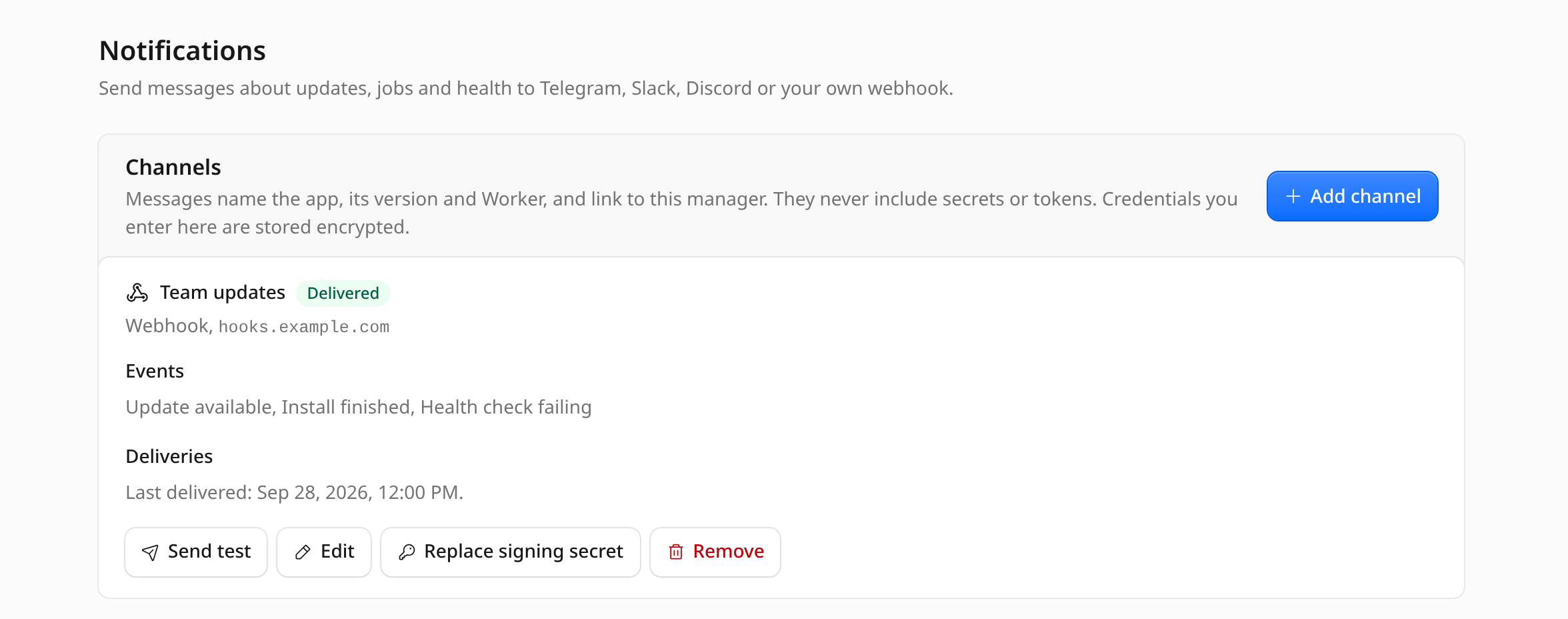
Each channel's menu (⋯) holds Edit and Remove. A webhook channel's menu also holds Replace signing secret, except while its credentials are unreadable (see below).
Edit changes a channel's name and events. To replace its credentials, enter new ones; leave the fields empty to keep the stored ones. A channel's kind cannot change; add a new channel instead. Changing a webhook's URL keeps its signing secret.
Replace signing secret (webhooks only) makes a new secret and shows it once. The old secret stops working at once, so update your receiver right after.
Remove stops sending to the channel and deletes its stored credentials. Messages waiting for a retry are dropped.
How credentials are stored
Bot tokens, webhook URLs and signing secrets are encrypted before they are stored in the manager's database, and are never shown again. The channel list shows only where messages go: the Telegram chat id, the host name, or the Discord webhook's number. Credentials never appear in messages, logs, or error text.
The encryption key is derived from the manager's BETTER_AUTH_SECRET, a Worker
secret set at install. If that secret is ever replaced, for example by
rotating the auth secret, the stored
credentials can no longer be read. Each channel then shows Credentials unreadable and sends nothing.
To fix a channel, select Edit and enter its details again. A webhook channel
repaired this way gets a new signing secret, shown once after saving: give it to your
receiver. Removing the channel and adding it again works too.
See the security model.
Change an app's settings
Change an installed app's settings, rotate or remove its secrets, move its email to another zone, and what a rollback puts back.
Usage and spend protection
How Appflare watches what each app uses, the alerts it sends, pausing an app by hand or automatically, the monthly budget, and what its estimates leave out.