Install an app
The install form, secrets, what the install job does, and post-install steps.
Open the app's page in Catalog. Only admins can install apps.
The install form
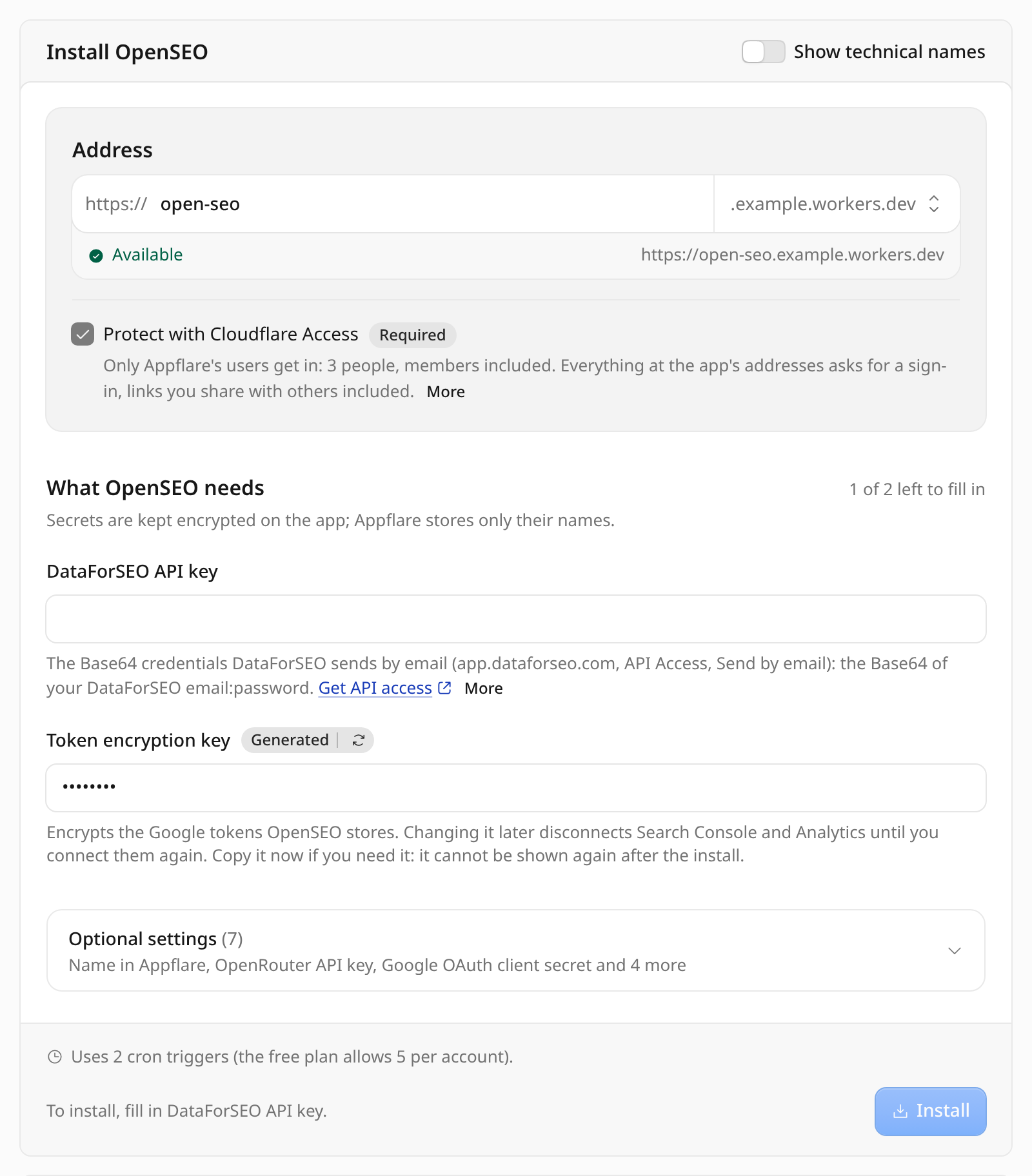
The form comes in groups: the app's address and who can open it first, then what the app needs from you, then its optional settings, folded. Its footer says what is left to fill in before you can install, or the address the app will be installed at.
Address. One field that reads as the address the app will have:
https://, the name you type, and the domain, which you pick from the list at the
right end of the field.
- Your workers.dev address (the default). The name is the app's Worker name, and
the app answers at
https://<worker-name>.<your-subdomain>.workers.dev. Use 1 to 54 lowercase letters, digits, or dashes, not starting or ending with a dash. The line under the field says Available, or why the name cannot be used: it belongs to another Worker in the account (Appflare never takes over a Worker it did not create) or to an app installed here. - One of your domains, a custom domain. The name
starts as the Worker name, so the app answers at, say,
https://open-seo.example.com. Leave the name empty to give the app the domain itself. The list has a search box, so an account with many domains finds one by typing. The app's Worker name then shows on its own line; Change edits it. The form checks the name as you type. If it already has DNS records, or already serves another Worker, the form says so: the install then leaves the name alone and the app answers onworkers.dev. Choose another name, or install anyway and add the domain from the app's page later. A name another app here uses must be changed before you can install. - Another domain, managed elsewhere, an external domain: type the whole hostname.
The install adds a domain once the app runs. A domain that cannot be added then does not fail the install; the log says why, and you can add it later on the app's Domains and email tab. An app that needs every name under one hostname is offered your domains as wildcard domains and no other domain. A self-deploying app has no address field: its own installer decides where its Workers answer.
Protect with Cloudflare Access. Puts every address of the app behind a Cloudflare sign-in that lets in only Appflare's users. The form says how many people that is and which paths stay public; More shows how they sign in. It starts ticked when the app's catalog entry recommends it, and is ticked and marked Required when the entry requires it. While the account cannot protect apps, it is disabled and says why. See Protect apps with Cloudflare Access.
What the app needs. The secrets the app cannot run without and the settings that have no default, with a count of how many are still empty. Secrets are stored as encrypted secrets on the app's Worker; Appflare keeps only their names. Some secrets are generated for you and marked Generated: the field holds a random 32-character value (or, for an app that sends push notifications, a new VAPID private key) that you can copy or replace. The small arrows inside the badge make a new one. Copy it before you install. It is shown only on this form and cannot be read back afterwards. A secret of several lines, such as a PEM private key, gets a text area: paste it with its line breaks. Its text shows while you enter it and cannot be read back once the app is installed.
Optional settings. Folded, and naming what it holds. It holds:
- Name in Appflare, how this install is listed. Leave it empty to use the app's name.
- Optional secrets, ones the app works without. Leave one empty and it is not set; you can set or remove it later in the app's settings.
- Settings that have a default or are optional, for example a home page URL. A setting
starts with the app's default, and only settings you change are stored; the others
follow the app's default on each update. Settings marked JSON take a JSON value, such
as
["inbox@example.com"], and the form checks it before you can install. A setting with a fixed set of values shows them as choices: cards for up to four, a dropdown for more.
The group opens by itself when it holds something already, such as on Install again, or when a value in it cannot be used.
Settings that Appflare fills in itself are not on the form: the ones made from the app's address, its Worker name, your account ID or its Cloudflare Access application, and those derived from a secret, such as the public key of a VAPID private key. The app gets their defaults, and its settings show them, where you can change them. A setting that keeps the app's address follows the Worker name you chose and follows the app's domain if its workers.dev URL is turned off later.
Fields show the app's own labels. The name the app reads each value under (its variable or secret name) shows when you hover over a label, or next to every label once you turn on Show technical names at the top of the form. Long help shows its first sentence; More shows the rest. Some fields link to where you get the value, such as Get a key for an API key; the link opens in a new tab.
Select Install. The manager starts an install job and opens its live log.
Apps with a database elsewhere
Some apps keep their data in a PostgreSQL or MySQL database that runs outside
Cloudflare, such as one at Neon, Supabase, PlanetScale, or on your own server. The
catalog marks them Database elsewhere, provided by you. Their install form has a
Databases group with one connection string field per database, such as
postgres://user:password@db.example.com:5432/app. The database must accept
connections from the internet with that user and password.
The install job gives the string to Cloudflare Hyperdrive, which connects to the
database before it answers, and binds the resulting Hyperdrive configuration
(<worker name>-<binding>) to the app's Worker. A database Cloudflare cannot reach
ends the install before the Worker is uploaded, with Cloudflare's reason. Appflare
never stores the connection string: it is not shown again, and it is not in the job's
record or log. An API token needs the optional Hyperdrive: Edit permission
(Cloudflare sign-in includes it). When a new version of an installed app adds a
database, its update asks for that connection string
the same way.
To point the app at another database, or to change its password, open the app's Settings, choose Replace connection string, and save. Appflare creates a new Hyperdrive configuration, uploads the app with it, checks the new version on a preview where Cloudflare allows it, and switches traffic to it. The old configuration is kept, listed as a replaced Hyperdrive configuration, so undoing the change from Versions still reaches the old database; a rollback makes it the app's configuration again. The next successful update or settings change deletes it; from then on, Versions shows older snapshots that bound it as not available for rollback, since their version would have no database. Uninstalling deletes all of the app's Hyperdrive configurations; the databases themselves are yours and stay as they are.
Apps that stream events
Some apps, such as analytics, send events through Cloudflare Pipelines into an Apache Iceberg table in R2, which they then query with R2 SQL. Pipelines is in open beta and only on Workers Paid, so these apps need Workers Paid, and the catalog lists Pipelines among what they use.
Their install form asks for an API token the app's data lives behind: create an R2 API token with Admin Read & Write (it carries Workers R2 Data Catalog and Workers R2 Storage write access, and R2 SQL read), and paste it into the field the app names. The app's page lists these permissions with a link to the dashboard's R2 API tokens page. Cloudflare keeps that token as the sink's credential, and the app receives it as a secret, usually to query its tables with R2 SQL. By the app's own design this token reaches every R2 bucket in the account, not only the app's: Cloudflare offers no R2 SQL or Data Catalog token narrower than the account's buckets that a sink accepts. Appflare's own token never leaves the manager.
Changing that secret later in the app's Settings gives the app the new token and stores it as the catalog's maintenance credential, but the sink keeps writing with the token it was created with: Cloudflare cannot change a sink, and a new sink cannot write to a table that already exists. Keep the original token valid while the app is installed; the job log says so when the secret changes.
For each stream the app binds, the install job:
- Creates the R2 bucket the events land in,
<worker-name>-<name>, unless it is a bucket the app already binds. - Turns on R2 Data Catalog for the bucket with the app's token and, when the app asks for them, compaction and snapshot expiration.
- Creates the stream (
<worker_name>_<binding>_stream, with the schema the app declares and no HTTP endpoint), an R2 Data Catalog sink that writes to the app's table, and a pipeline between them, then binds the stream to the Worker.
The stream, sink and pipeline cannot be changed once created, so updates keep them. An update to a version that changes a stream's schema or the table it writes to is refused with a message: such a version needs a fresh install. An update to a version that adds a stream creates it the same way, after asking for the token again (the manager cannot read a secret back). Uninstalling deletes the pipeline, the sink and the stream; the bucket is listed with the app's other data, and keeping it keeps its Data Catalog and the table. Appflare's token needs the optional Pipelines: Edit permission, and Workers R2 Data Catalog: Edit (added by hand) for an uninstall to remove the Data Catalog of a bucket it deletes.
Several installs of one app
You can install an app more than once, each under its own Worker name. The form
suggests a free name: cut, then cut-2, cut-3, and so on. Each install has its
own resources, secrets, and updates.
A few apps only work under one Worker name, for example because they hard-code their own hostname. For those the Worker name field is read-only and the app installs once per account.
Workers Free or Workers Paid
Appflare reads your account's Workers plan from its subscriptions when its Cloudflare token has the optional Billing: Read permission (or from Containers, which only Workers Paid includes), and shows it in Settings > Your account, under What this account can run; the row's Details say it was detected. It checks when the token is saved, once a day, and when you select Check again. Cloudflare sign-in cannot include Billing, so an Appflare connected that way has only Containers and your choice to go on. When Appflare cannot tell, the Workers plan row offers Choose plan so you state it yourself (its Details then say "set by you"); until you do, Appflare treats the account as on Workers Free. A detected plan always comes first.
- On Workers Paid, the install form does not ask you to confirm Workers Paid for apps that need it, and installs and updates skip the count of the account's cron triggers.
- When Appflare cannot tell the plan, an app that needs Workers Paid lists the Workers plan in Before you install, above the form. Ticking My account has these there is the confirmation; the form does not ask again. Choose plan in that box records the plan for the account, so later installs stop asking.
- On Workers Free, the install form offers This account is on Workers Paid as an option for an app with cron triggers. Ticking it also offers Remember this for the account, which records Workers Paid as the Workers plan in Settings > Your account, unless the plan was detected.
The catalog page and the install form show how many cron triggers an app uses. The update dialog shows it too when a new version adds cron triggers.
What the install job does
Each step is a durable Workflow step, retried on its own if a Cloudflare API call
fails for a moment. The log shows every API call as METHOD path -> status.
- Fetches the app's signed manifest from the catalog release and verifies its signature.
- Checks the plan, the requirements, the Worker name, and that the account has room for the app's Workers (100 on Workers Free, 500 on Workers Paid). For apps that bind R2, it checks that R2 is enabled. For apps with cron triggers, it counts the cron triggers your other Workers use and stops if the app's own would take the account past the 5 Workers Free allows. The count is skipped when the account is on Workers Paid (see below).
- Creates each KV namespace, D1 database, R2 bucket, queue, and Vectorize index the
app binds, named
<worker-name>-<binding>(lower case,_becomes-). It records each one as it goes. If a resource with that name already exists in the account, the install stops instead of adopting it. Hyperdrive configurations come first, and each Pipelines stream last, with its sink, pipeline and bucket (see apps that stream events). - Uploads the app's static assets, then the Worker with every binding filled in. Every file is read from the signed release and checked against its sha256 first.
- Applies the app's D1 migrations, in the same
d1_migrationstable wrangler uses. - Sets the secrets and the cron triggers, attaches the Worker to each queue it
consumes, and enables the
workers.devroute. A queue that only a consumer names, such as a dead-letter queue, is created in step 3 as<worker-name>-<queue name>. - Runs a health check.
For an app of several Workers, step 4 and step 6 run once per Worker, as described below.
If a step fails, the job stops and names the step. Everything created so far stays recorded. Nothing is deleted automatically.
Appflare records each resource's name before creating it, and its id once Cloudflare returns one. A job that fails records that id as it stops, or releases the name when nothing was created. Only a job stopped from outside (for example terminated in the Cloudflare dashboard) can leave a name recorded without its id. Appflare then cannot tell whether a resource of that name is the app's, since the create may never have run, so it never deletes or reuses one by that name: the next attempt creates the resource when nothing has that name, and otherwise stops, naming it. If that resource is not in use, delete it in the Cloudflare dashboard, then try again.
Once the cause is fixed (a permission added to the token, a domain freed), use Install again. It is on the app's page, on its row under Needs attention on Home, and on the log of the failed job. It opens the install form filled in from last time: the Worker name, the address and domain, Cloudflare Access, the name and the settings. The automatic-update choice carries over. Appflare never stores secret values or database connection strings, so you enter those again; generated secrets get new values, and you confirm Workers Paid, build costs and the app's requirements again. When the catalog has a newer version by then, the form installs it and says what no longer applies.
Installing again first uninstalls the failed install, deleting everything it left in the account and keeping nothing, then installs the app anew. The new install waits for that removal, so nothing is created twice and nothing is left behind. If the removal itself fails, the new install creates nothing and fails too: open the earlier install's app page, finish uninstalling it from its danger zone, then use Install again on the new install's page.
An app installed from a repository, or built from source, is installed again from the review of the build it was installed from, so nothing is built again; if that build is gone, the review offers to build the same branch again. See If the install fails.
Apps of several Workers
Some apps install as several Workers, for example a web front end and an API. One of
them is the app: it runs under the Worker name you choose, serves the app's address
and any custom or external domain, and answers the health check. Every other Worker
runs as <worker-name>-<name> on its own workers.dev address; an app installed as
notes with an api Worker also gets notes-api. A Worker that only the app's other
Workers call can be kept off workers.dev by its catalog entry: it then has no
address at all and is not reachable from the internet.
An app may have up to 24 Workers, on Workers Free as on Workers Paid. On Workers Free, Cloudflare lets a job make 50 requests at a time, and each Worker adds a few, so the install, update, rollback or uninstall job of a larger app pauses for 5 minutes whenever it needs a fresh allowance, then carries on by itself. Its log says so each time. An app of a dozen Workers takes a few of these pauses; nothing is wrong while it waits. Each Worker counts toward the account's limit (100 Workers on Workers Free, 500 on Workers Paid), and the install stops before creating anything when the account has no room for all of them.
The form asks for each secret and setting once. The manager sets it on the Workers of the app that use it. Post-install steps and settings can mention any of the Workers' addresses, filled in for this install.
The install job creates the app's resources first, one for each binding name: two
Workers that bind DB share one D1 database. It then deploys the Workers one at a
time, each after the Workers it binds to, with the app's own Worker as late as
possible. Each gets its own static assets, secrets, cron triggers, queue consumers,
and workers.dev address, except a Worker kept off workers.dev, whose address and
version previews stay off. D1 migrations run once all of them are deployed, and the
health check requests the app's own Worker.
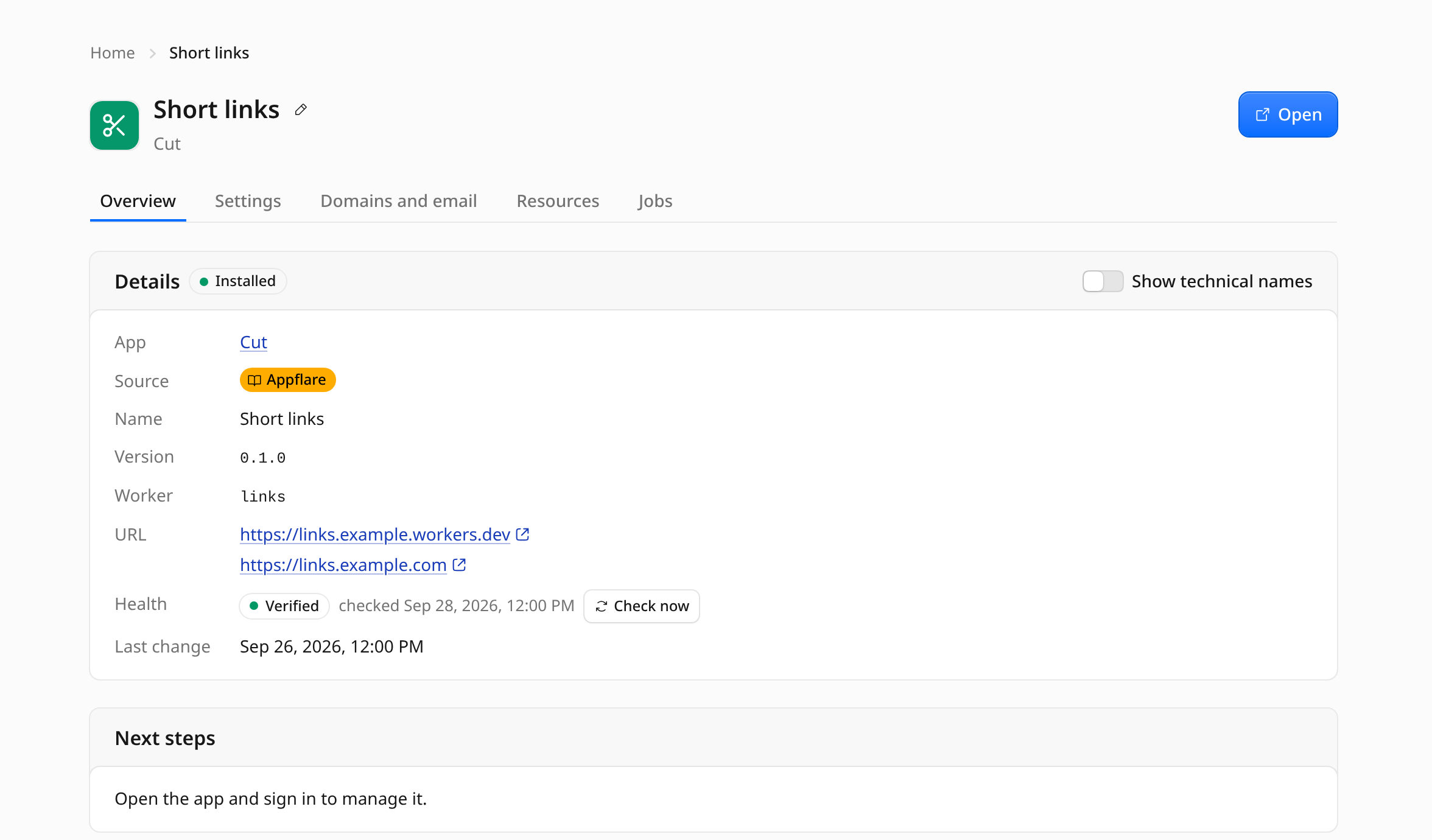
The app's page lists the other Workers under Details, each with its address or a note that it is not reachable from the internet, and each Worker under its resources. Updates and rollbacks, settings changes, and uninstalling always cover every Worker of the app.
Post-install steps
When the install finishes, the app's page shows Next steps if the app has any: where to sign in, which URL to point a client at, what to configure first. They can mention the app's URL and Worker name, filled in for this install.
Home
Home starts with Needs attention, shown only when something does, most urgent first: a job that did not finish (View log), an app using far more than usual or a paused app (Pause app, Resume), an app that is not responding (Check again), updates, and anything your account still needs for apps you use (Set up, or Not needed to hide it in this browser). The number beside Home in the sidebar counts these rows.
Below it, Usage shows what the account's apps use and what that costs (see
Usage and spend protection). Your apps shows a
card for every install: its name, a small chart of its usage, one line on how it is
doing, Open (the app itself, in a new tab, at its dashboard when the app keeps
one at another path, such as /dashboard) and Manage (its page in Appflare).
The sidebar lists the same apps under Your apps, with a dot when one needs
attention; the search icon beside the heading filters the list.
With no app installed, opening Appflare takes you to the catalog.
The app's page
Manage opens an app's page. It shows its status, version, health, resources, secret names, jobs, its usage, and the actions for updates and rollbacks, changing settings and secrets, and uninstalling.