

Usage and spend protection
How Appflare watches what each app uses, the alerts it sends, pausing an app by hand or automatically, the monthly budget, and what its estimates leave out.
A Worker that loops can run up a bill overnight, or use up a free daily limit that the whole account shares. Appflare reads what each installed app uses every 5 minutes, shows it on Home and on the app's page, tells you when something looks wrong, and can pause an app that runs away. Pausing is off until you turn it on.
Admins change everything on this page. Members see the same numbers and settings, without the buttons.
What Appflare watches
Every 5 minutes, Appflare reads Cloudflare's analytics for the resources it created for each app: its Workers, Durable Objects, D1 databases, KV namespaces, R2 buckets, queues, Workflows, Vectorize indexes, Analytics Engine datasets, container applications, and the Browser Run sessions of its Workers. It matches usage to apps by the resources' ids, not by name, and it keeps its own hourly history: 45 days of hours and 400 days of daily totals. That history outlives a deleted Durable Object namespace, whose analytics Cloudflare deletes with it.
On Workers Free it also reads the whole account's use today of each product with a free daily limit, because Cloudflare counts everything in the account against those limits, including Workers and databases Appflare did not install. See Free daily limits.
Cloudflare's analytics are a few minutes behind, and they can still change for a while. Each check reads the last 3 hours again.
A new app shows up after about an hour. Appflare starts reading an app 15 minutes after it is installed, from the moment it was installed, but Cloudflare's analytics name a new Worker only after 40 to 50 minutes. Until its usage appears, for up to an hour, the app counts as just installed: its card on Home and its Usage tab say Usage shows up about an hour after install, and alerts and automatic pausing cannot see it yet. To watch a new app's requests sooner, its Usage tab offers Turn on Workers Logs: Workers Logs in the Cloudflare dashboard show new requests within a couple of minutes. Updates and settings changes keep the app's Workers Logs as they are.
All money is an estimate: usage times Cloudflare's list price. See What the numbers are.
Where you see it
Home
Usage sits above Your apps. It covers the Cloudflare account's apps, by app.
- On Workers Paid, three totals: Usage this month (what Appflare's apps used past what the $5 plan includes), Projected month (that with the $5 plan, if the last day's pace holds) and Burning now (what every app's activity costs an hour at list price, before included usage). Paused apps count as using nothing more, and removed apps count only for what they used before. Workers and resources Appflare did not install are not counted, so these are not the account's whole bill.
- On Workers Free: Can be billed ($0, unless R2 is past its free amount, see below), Closest daily limit (the free daily limit the account has used most of today, everything in the account counted, with how much of it is other usage in this account, not Appflare apps) and Apps needing a look.
- A chart of the last 7 days, hour by hour, for the product you pick in the tabs above it, stacked by app with one color per app. Past six apps, the smallest share one color as Other apps. On Workers Free, a line under the chart gives today's other usage in this account (not Appflare apps) of the product's daily limit, which the chart does not show.
Each app's card adds a small 7-day chart of its most telling product and one line on its usage, such as "12% of today's requests" ("under 1%" for a tiny share, and "No requests today" when it has none) or "Paused at 10:00 AM · no usage since" (with the date when it was paused on an earlier day). The chart turns red when the app runs far above its normal or used up a free daily limit, and grey while it is paused. In those cases the card also leads with Pause or Resume for admins.
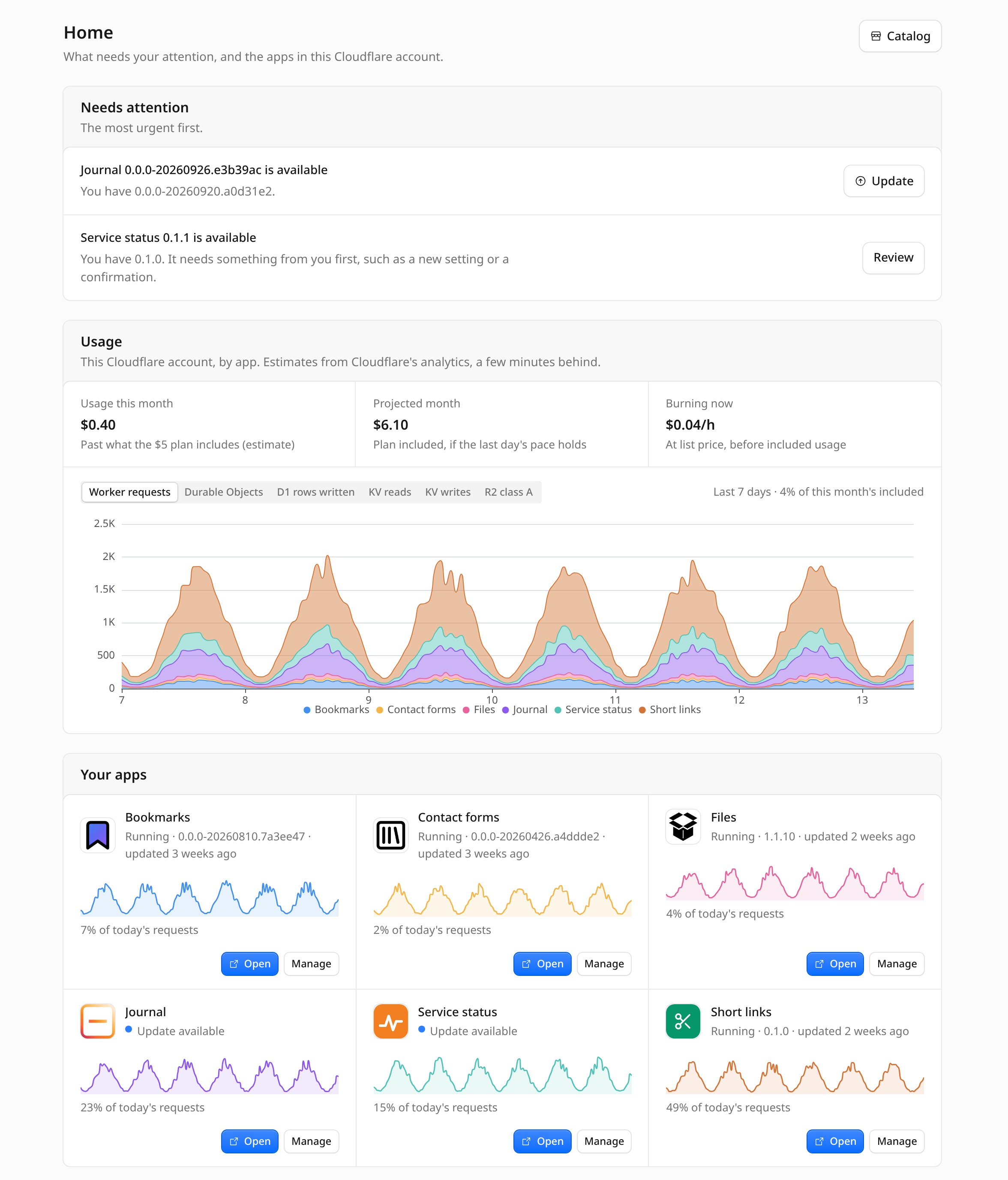
Needs attention
Spend protection puts its rows at the top of Needs attention on Home:
- an app using far more than usual, or with no usual usage yet and already using a lot (unusual usage), with Pause app;
- a free daily limit used up for today, with Pause app;
- an app that is paused, with Resume;
- a free daily limit about to run out today, with See usage;
- on Workers Free, the whole account near a free daily limit (90% used) or past it, whatever used it, with See usage (free daily limits).
The sidebar and the app's card show a dot for each app's row. The account's row is not an app's, so it has no dot, but it counts on the sidebar's Home item like every row.
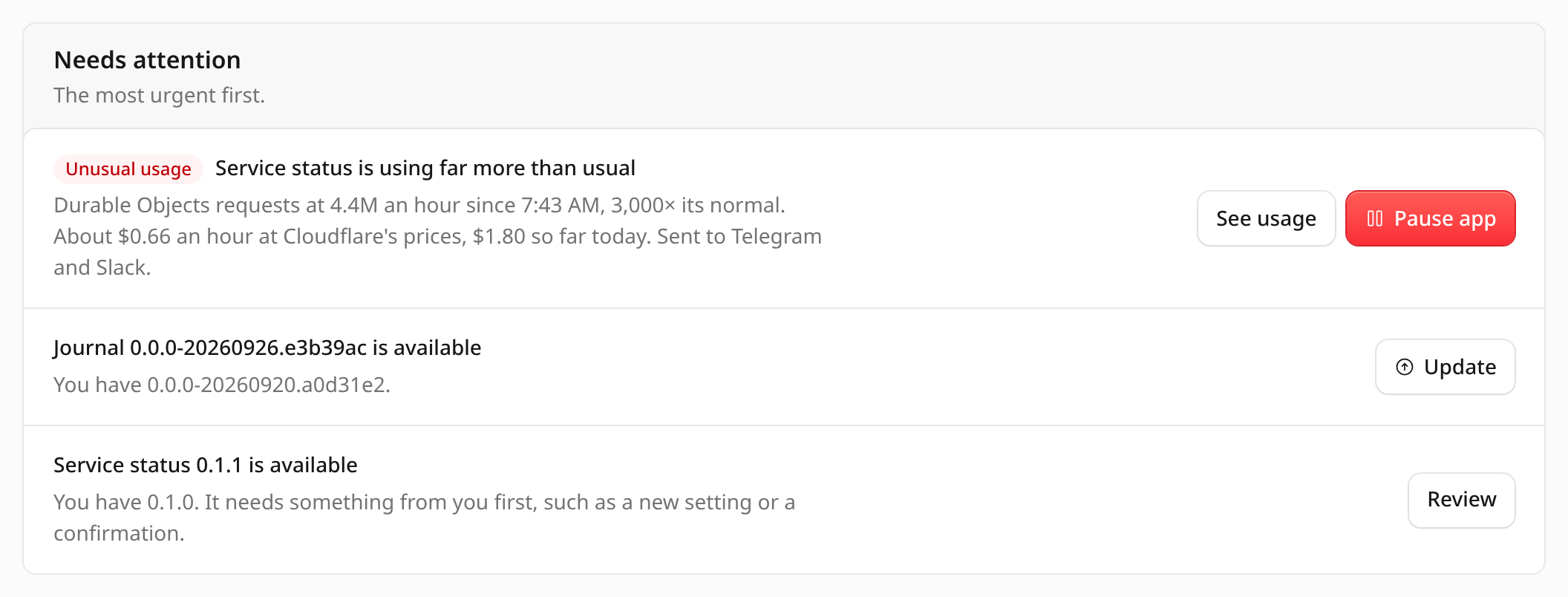
The app's Usage tab
Every installed app's page has a Usage tab, after Overview.
- One line on how the app is doing: normal, busier than usual (an hour at 3 times its normal or more, which alerts no one), far above normal with the numbers, a free daily limit used up, paused and why, or just installed. A banner above the tab offers Pause app or Resume when it applies.
- A chart of the product you pick over 24 hours, 7 days or 30 days, with a line at the app's normal hour and markers for updates, settings changes, alerts and pauses.
- A table of every product the app uses: the last 24 hours, today, this month, where the month is heading (Projected), how much of what the plan includes the account has used (or of the free limit, on Workers Free), and on Workers Paid the app's part of the Cost past included. Select a row to chart it. On Workers Free, a daily limit's share counts the whole account, and a line under the table says how much of it is other usage in this account (not Appflare apps).
- Spend protection: the app's own alerts and automatic pausing, and for admins Pause app while the app is running.
- Recent activity: updates, settings changes, alerts, pauses and resumes, newest first.
Alerts
Each alert goes to the notification channels that want its event, and the app's Recent activity records it. Unusual usage and free daily limits also show on Home under Needs attention. A message about an app links to its Usage tab, and every dollar amount in one is an estimate.
Appflare sends each alert once: once per episode of unusual usage, once per usage alert and period, once per app and day for a free daily limit. An alert that keeps holding does not repeat on every check.
Unusual usage
An app's normal is its usual busy hour: the 95th percentile of the hours it was active over the 7 days before the last day. The last day is left out, so a loop that started yesterday does not become the normal it is measured against. Idle hours do not count, so an app that runs a batch once a day is compared with its batches. An app with fewer than 3 active hours in that window has no normal yet.
An hour is unusual when one of the app's products reaches the set multiple of its normal for that product. Choose it on the app's Usage tab under Unusual usage: At 5× its normal, At 20× its normal (the default), At 100× its normal, or Don't alert. Settings > Your account > Spend protection > Unusual usage alerts sets the default for every app.
The hour must also matter, so a tiny app does not alert on noise: on Workers Paid it must cost at least $0.05 at list price, and on Workers Free it must use at least 5% of a free daily limit (or cost $0.05 of R2, which bills on Free too).
An app with no normal yet cannot be far above it, but a new app that loops must not go unnoticed for a week. It raises the same alert once it uses a lot: over $1 an hour on Workers Paid, or on Workers Free, on pace to use at least 25% of a free daily limit within the day (or R2 activity over $1 an hour). The message calls the app new only in its first 7 days; after that it is an app with no usual usage yet, such as one that runs rarely.
The message (Unusual usage, usage_unusual) names the product, how far above
normal it is, and what the app costs an hour and has cost today. The episode ends when
no product is even half that far above its normal any more (for an app with no normal,
when it uses less than half that much). The next one sends a new message.
After a resume, the check counts only what the app used since the resume, so the loop it was paused for does not alert again.
Usage alerts
A usage alert is a sentence you write on the app's Usage tab, under Usage alerts > Add alert:
When it [has spent | is on pace to spend] [amount] [in dollars | of included usage] [today | this week | this month]
For example, "When it has spent $6.00 this month" or "When it is on pace to use 80% of included usage by the end of the week".
- Has spent compares what the app has used so far in the period.
- Is on pace to spend compares where it ends up by the end of the period at its current pace: what it used so far plus the pace times the hours left. The pace is the faster of the last 3 hours and the last 24 hours' average, so a quiet stretch does not hide a busy day. When the last 3 hours fall below a tenth of the day's average (the app stopped, or was paused), only they count.
- In dollars is the app's activity at list price, before included usage. Storage does not count.
- Of included usage is the app's own use as a share of what Workers Paid includes, for the product where that share is largest. A daily allowance, such as Workers AI's, counts once for each day of the period.
- Periods are UTC: a day starts at 00:00 UTC, a week on Monday at 00:00 UTC, and a month on the 1st.
Each alert shows where it stands, with a bar for what is spent and where the pace
leads: Watching, Close (at 80% of the amount or more), On pace to pass, or
Alert sent. It sends one message (Usage alert, usage_alert) the first time
it comes true in a period, and none again until the next period.
On Workers Free, a usage alert is a share of a free daily limit, for today only, such as "When it is on pace to use 50% of a free daily limit by the end of the day". Dollar alerts and weeks or months do not apply there and show Not used.
Free daily limits
On Workers Free, the daily limits belong to the account, not to an app: 100,000 Worker requests a day are shared by every Worker in the account. They count everything in the account, including what Appflare did not install: Workers you deployed yourself, other databases and namespaces, test or CI deployments, and Appflare's own Worker. Once a limit is used up, Cloudflare refuses more until 00:00 UTC, so Appflare's apps that need it fail until then too, whatever used it up. The limits are in the table below.
So on every check, Appflare reads the whole account's use today of each product with a daily limit, along with its apps' usage. It uses that total wherever a daily limit is judged or shown: Closest daily limit on Home, the share of the free limit on an app's Usage tab, and the alerts below. The part that is not from Appflare's apps shows as other usage in this account (not Appflare apps). Appflare keeps only today's total of it: it does not chart it, keep its history, split it by Worker, or cap or pause anything that is not Appflare's. Workers AI is counted for the whole account and shared by the apps that bind it, so it never shows other usage.
When the account is on pace to use up a daily limit before 00:00 UTC, Appflare tells
you about the app using most of it (Free daily limit running out,
usage_limit_near), with that app's share of the account's use and how much of it is
other usage. Each app gets at most one such message a day, about the limit closest to
running out; another limit, used most by another app, sends its own. Home shows when it
runs out at this pace, then that it is used up. Appflare has no history of the other
usage, so its pace counts only Appflare's apps: other usage that keeps growing shows as
used up once the limit is reached. R2 has no daily limit: it bills past its monthly
free amount instead.
Once the whole account has used 90% of a daily limit, Appflare also warns about the
account, whatever used it: a row in Needs attention and a message (Account near a
free daily limit, usage_account_limit), such as "This account has used 90% of today's
free D1 rows written (90.3K of 100K), mostly other usage in this account. Cloudflare stops D1 for
the whole account when it runs out, until 00:00 UTC." It says who used most of it:
"mostly other usage in this account", or the Appflare app that did. The row turns into "used up" if
the limit runs out. A channel hears about a limit once a day, from whichever warning
comes first among the events it receives: a channel that gets both the app's and the
account's is told once, and a channel that gets only one of them always hears that one.
Home shows the account's row in place of an app's row saying the same limit is about to
run out.
Pause an app
Admins can pause any running app from its Usage tab, with Pause app in its Spend protection section. When an app is far above normal or has used up a free daily limit, Home and the tab's banner offer Pause app too. Appflare asks first, then starts a pause job with its own log. Only one job of an app runs at a time.
What a pause does
Each of the app's Workers serves a stand-in version in place of the app's code, at 100%. The stand-in keeps every binding and secret and runs no Durable Object migration, so nothing the app stored is touched: its KV, D1, R2, Durable Objects and queues keep their data.
- Every request gets a 503 page that says This app is paused by its owner. Static files are not served either.
- Durable Object alarms are put off by an hour each time they fire, so an alarm loop stops costing and each object keeps its alarm for later.
- A hibernating WebSocket that sends a message is closed with code 1012, "Paused".
- Cron triggers do nothing, and incoming email is rejected.
- Other Workers that call the app over a service binding get the paused page, or an error from its methods.
- The app's queues stop delivering. Messages wait in the queue.
- Running Workflow instances are paused, and a new instance fails at once.
- Container applications are allowed no instances, and running ones stop within about 15 seconds.
Requests get the paused page within a few seconds. A Durable Object that holds an ordinary (non-hibernating) WebSocket can go on running the app's own code for a few minutes, until Cloudflare closes the connection.
The pause records the version each Worker served, and every queue, container application and Workflow instance it changes, before it changes it. Storage is still billed while an app is paused.
The app's activity records the pause, and the notification channels get App
paused (app_paused), with who paused it, or why Appflare did.
Resume
Admins select Resume on Home or on the app's Usage tab. The resume job puts back exactly what the pause recorded: container applications may run their instances again, each Worker serves the version it served before, at 100%, the queues deliver again, and the paused Workflow instances carry on. It takes seconds.
Appflare never resumes a paused app by itself. Before you resume, fix what made it run away, for example by undoing the settings change that started it. If it loops again and automatic pausing is on, Appflare pauses it again.
App resumed (app_resumed) goes out when someone other than the person who
paused the app resumes it, and when Appflare puts back a pause that could not finish.
While an app is paused
- Updates, rollbacks, database restores, settings changes and Install again are refused with "Resume the app first". Check now waits too. A new version would run the app again without anyone resuming it.
- Health checks skip it, so its paused page never counts as an app that is down.
- Uninstalling it works as usual. The uninstall closes the pause.
If a pause or resume fails
A pause job that fails puts back what it had changed, and the notification channels
get Pausing an app failed (app_pause_failed): the app may still be running and
using Cloudflare. The job's log says which step failed. Select Pause app again
once the cause is fixed, or follow the log. When something cannot be put back, the app
stays paused, and Resume finishes putting it back.
Automatic pausing backs off: after a failed automatic pause, Appflare does not try that app again for an hour.
A resume job that fails leaves the app paused, and Home still offers Resume. Every step of a resume sets a recorded value, so resuming again carries on where the failed one stopped.
Pause apps automatically
Automatic pausing is off by default. Appflare only alerts you, and your apps keep running.
Settings > Your account > Spend protection sets what every app follows:
- Pause apps automatically, on or off.
- What pauses an app: the loop check and, on Workers Paid, a spending cap. Each shows which apps it would act on right now.
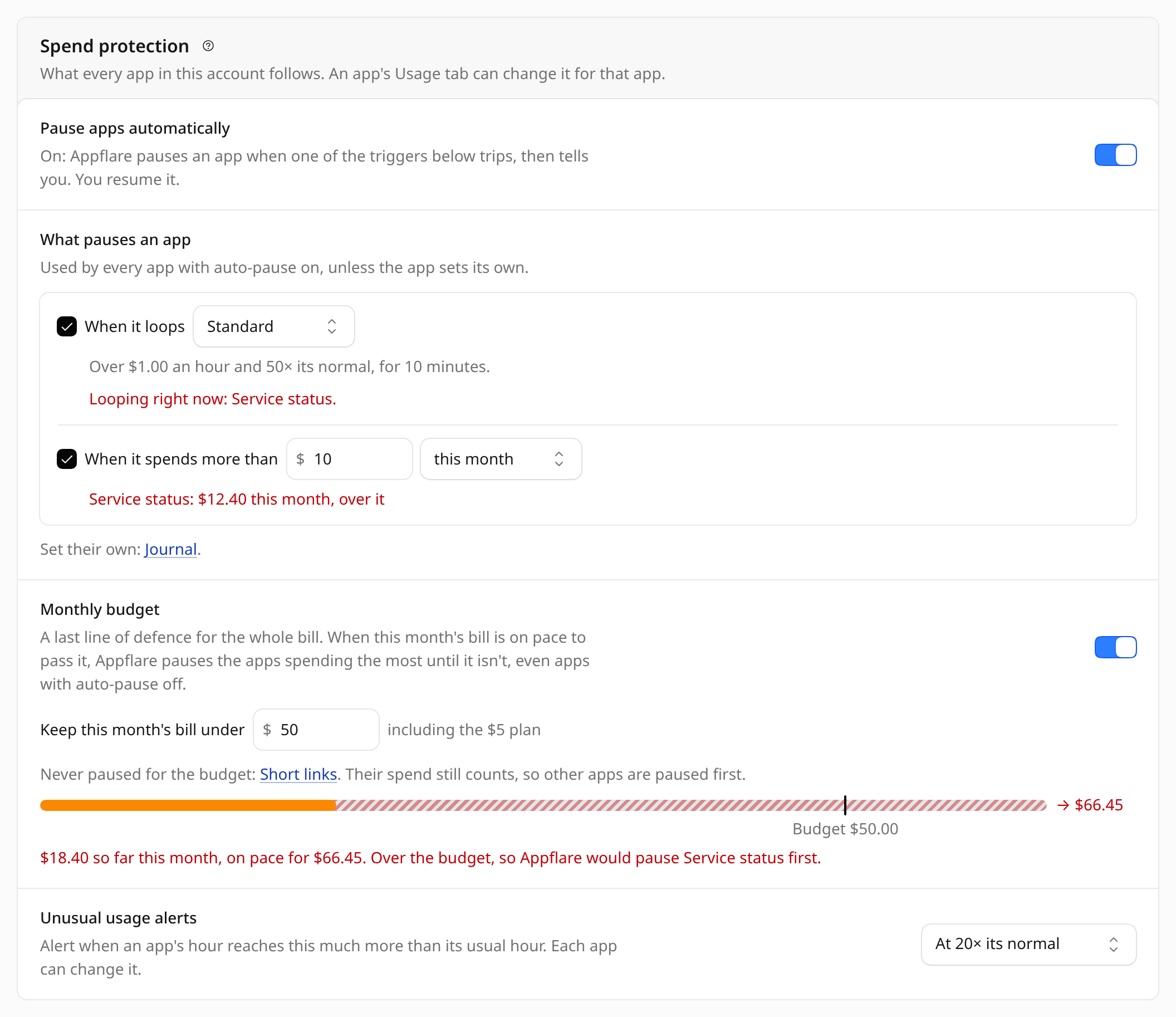
On an app's Usage tab, Pause automatically is Account default, On for this app or Off for this app. While it is on, the app follows the account's triggers, or select Customize for this app to give it its own. Use the account's triggers goes back.
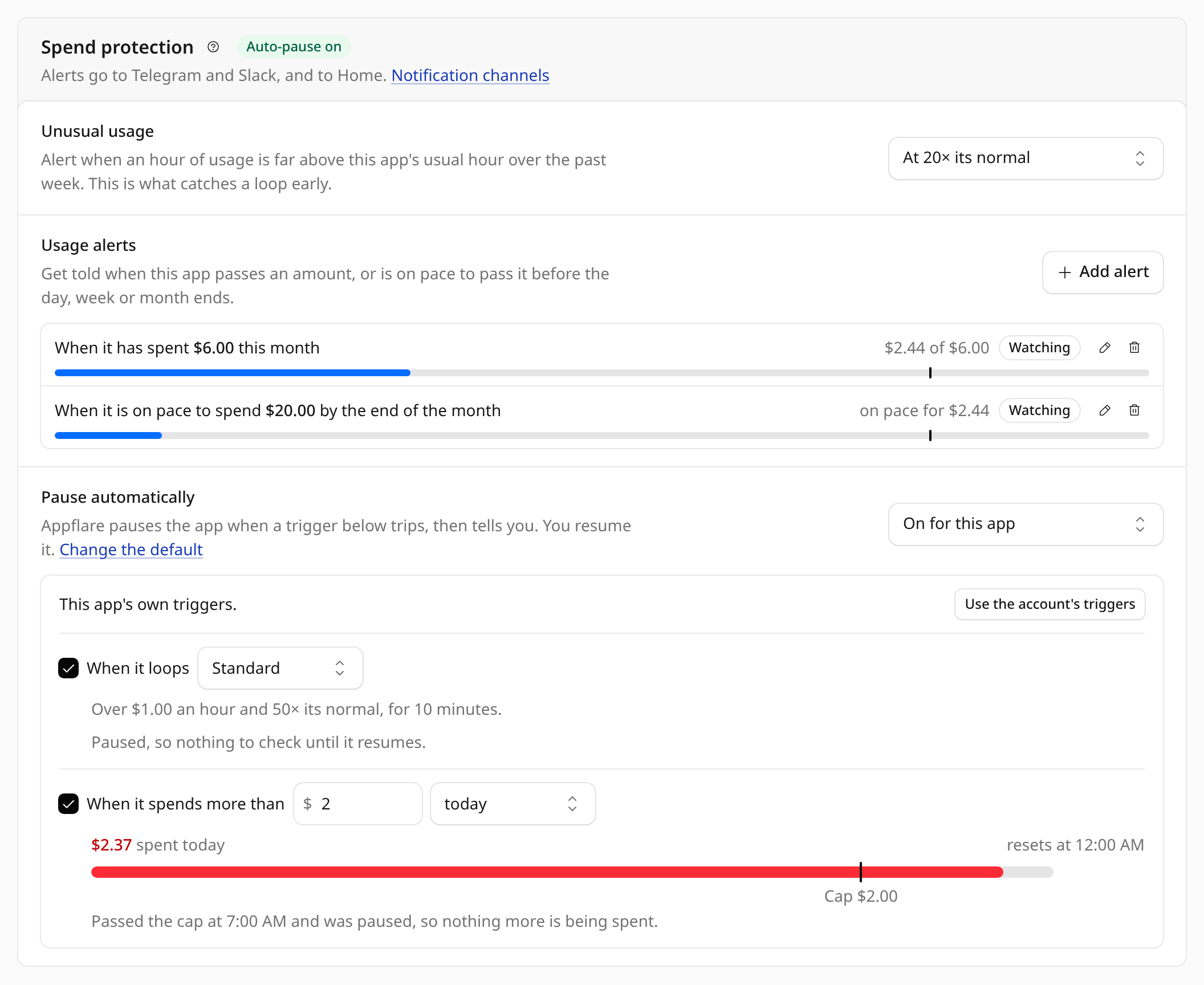
When a trigger trips, Appflare pauses the app on that check, the same way a pause by hand does, and tells you why. You resume it.
When it loops
A loop is real money and far above the app's normal at once. Both halves must hold, so a tiny app at 100 times its normal does not trip, and neither does a busy app at its usual level. The check uses the app's cost over the last 60 minutes at list price, storage left out. After a resume it counts only what the app used since the resume, as a rate an hour, so the loop it was paused for does not pause it again at once.
| Level | Workers Paid | Workers Free |
|---|---|---|
| Relaxed | Over $5 an hour and at least 100× its normal | At least 100× its normal and on pace to use at least 50% of a free daily limit within the day |
| Standard (default) | Over $1 an hour and at least 50× its normal | At least 50× its normal and on pace to use at least 25% of a free daily limit within the day |
| Strict | Over $0.25 an hour and at least 20× its normal | At least 20× its normal and on pace to use at least 10% of a free daily limit within the day |
On Workers Free, R2 activity costing more than the level's dollars an hour also counts as real money, since R2 bills on Free too.
One more sign counts as far above normal at any level: a single Durable Object that ran its alarm more than 3,600 times in an hour, more than once a second. Only a loop does that.
The check must trip on two checks in a row, 5 minutes apart, before Appflare pauses the app. An app with no normal yet, such as one installed today, is judged by the money half alone, so a loop right after an install still pauses it.
When it spends more than a cap
On Workers Paid, a spending cap pauses an app once its activity at list price passes an amount today, this week or this month. The account's default cap is $10 a month. The cap counts the whole period, a resume or not. Storage does not count: a pause cannot stop storage charges, so it would trip the cap again after every resume. The cap's bar shows what is spent, where the pace leads, and when the cap resets. Periods are UTC, as for usage alerts.
Resume until the cap resets
An app that is still past its cap when you resume it would be paused again on the next check, whatever paused it first. Resume then offers Resume until the cap resets: the cap is set aside until its period ends, at 00:00 UTC for a daily cap, and the loop check keeps running. The dialog links to the app's cap if you would rather change it.
Monthly budget
On Workers Paid, Settings > Your account > Spend protection > Monthly budget keeps this month's Appflare usage under an amount: "Keep this month's Appflare usage under $50 including the $5 plan". It is off by default, and the amount starts at $50 when you turn it on.
What it counts is the $5 plan plus Appflare's apps' usage past what the plan includes, projected to the end of the month at the current pace. It is the part a pause can lower, unlike the list-price spend of usage alerts and caps. It counts only Appflare's apps: Workers and resources Appflare did not install are not read on Workers Paid, so the account's real bill can be higher. For a check on the whole bill, see Cloudflare's budget alerts.
When the projection reaches the budget, Appflare tells you once that month
(Monthly budget reached, budget_reached) and pauses the app with the largest
projected share of the month's usage past included. It pauses one app per check, every
5 minutes, until the projection fits, counting paused apps as stopped. The budget pauses
apps even when their automatic pausing is off. The section shows this month's Appflare
usage against the budget, and which app it would pause first.
An app that costs more to stop than to pay for can opt out: on its Usage tab, tick Never pause this app for the budget. Its usage still counts toward the budget, so Appflare pauses other apps first. When no app Appflare may pause adds to it, the budget pauses nothing more.
Workers Free and Workers Paid
Appflare uses the account's Workers plan from Settings > Your account > What this account can run (how it finds the plan).
On Workers Paid, Cloudflare bills $5 a month plus usage past what the plan includes. Dollar alerts, spending caps and the monthly budget all apply.
On Workers Free, Cloudflare cannot bill you for Workers: past a daily limit it refuses instead. So there is no spending cap and no monthly budget. Usage alerts and the loop check measure an app's shares of the free daily limits, and Appflare warns before a limit runs out, counting the whole account's use of it. R2 is the exception: it bills past its free amount on any plan, so Home's Can be billed shows what R2 costs when an app is past it.
Permissions
Usage needs one Cloudflare permission: Account Analytics: Read. How you get it depends on how Appflare connects:
- Cloudflare sign-in asks for it. An Appflare connected before this version lacks it, and the Sign-in permissions row under What this account can run asks an admin to Reconnect Cloudflare.
- An API token lists Account Analytics in the token form under Usage and spend protection, and the template link selects it. It is optional. See the token's permissions.
Without Account Analytics, Appflare reads no usage, so it sends no usage alerts and pauses nothing on its own. Home's Usage section asks you to reconnect Cloudflare (or, with a token, to give it the permission) instead of showing numbers, the app cards leave out their usage, each app's Usage tab says Reconnect to see usage or Give the token access to usage, and Settings > Your account > Spend protection says it has nothing to act on yet. Installing, updating and everything else work as before.
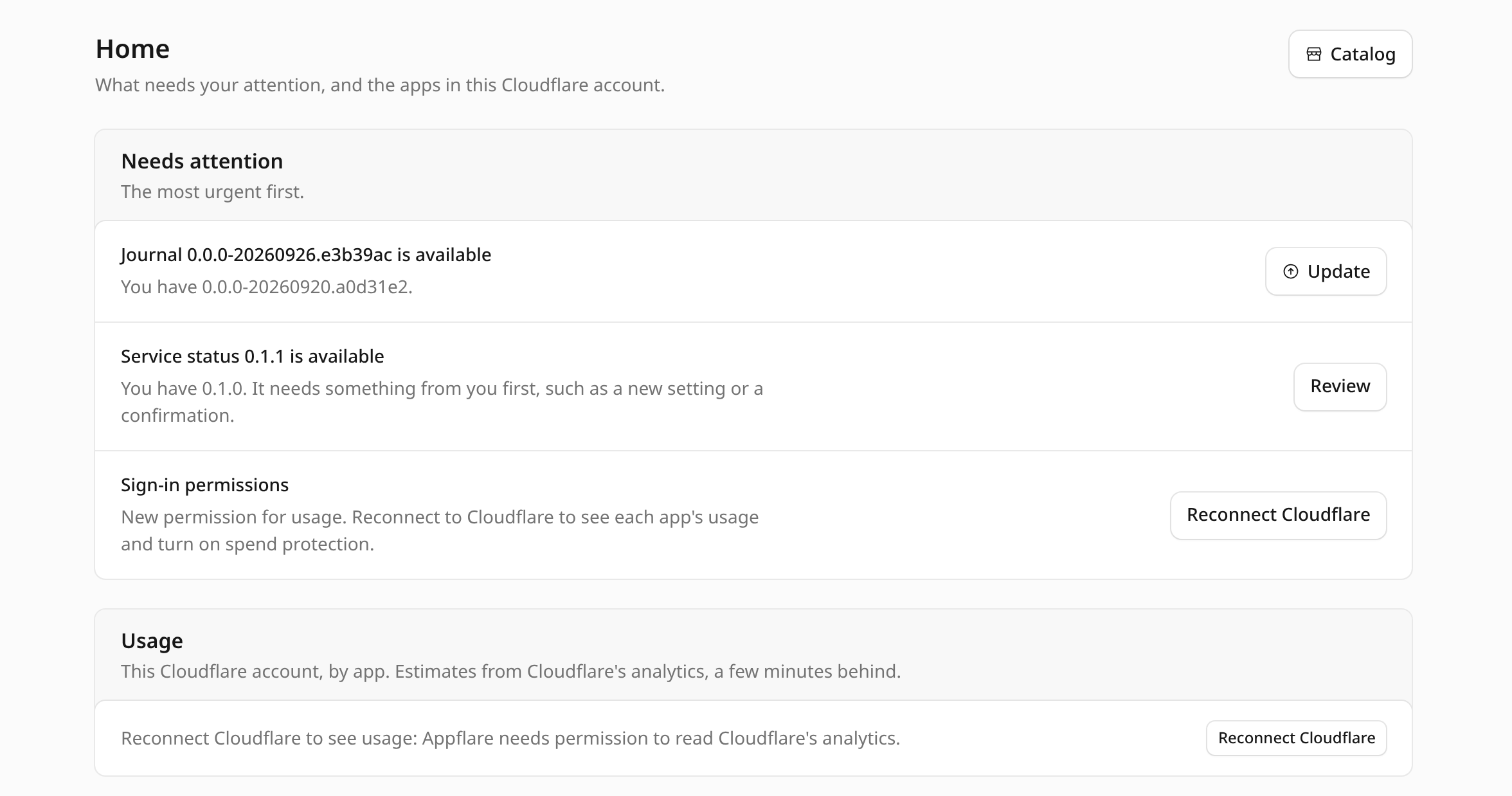
Once it has the permission, spend protection starts with the first numbers it reads.
What the numbers are
Every amount is usage times Cloudflare's list price. It is an estimate, not your bill: Cloudflare rounds some meters up, and Billing in the Cloudflare dashboard has the real amounts. Cost past included and this month's Appflare usage split the apps' usage past included across apps by each app's share of each product.
Appflare estimates with these prices and allowances, from Cloudflare's pricing pages:
| Product | Workers Paid includes | Price past it | Workers Free |
|---|---|---|---|
| Worker requests | 10 million a month | $0.30 per million | 100,000 a day |
| Worker CPU time | 30 million ms a month | $0.02 per million ms | Limited per request, not per day |
| Durable Objects requests | 1 million a month | $0.15 per million | 100,000 a day |
| Durable Objects duration | 400,000 GB-s a month | $12.50 per million GB-s | 13,000 GB-s a day |
| Durable Objects rows read | 25 billion a month | $0.001 per million | 5 million a day |
| Durable Objects rows written | 50 million a month | $1.00 per million | 100,000 a day |
| Durable Objects storage | 5 GB | $0.20 per GB-month | 5 GB |
| D1 rows read | 25 billion a month | $0.001 per million | 5 million a day |
| D1 rows written | 50 million a month | $1.00 per million | 100,000 a day |
| D1 storage | 5 GB | $0.75 per GB-month | 5 GB |
| KV reads | 10 million a month | $0.50 per million | 100,000 a day |
| KV writes, deletes and lists | 1 million a month each | $5.00 per million | 1,000 a day each |
| KV storage | 1 GB | $0.50 per GB-month | 1 GB |
| R2 class A operations | 1 million a month | $4.50 per million | The same, billed past it |
| R2 class B operations | 10 million a month | $0.36 per million | The same, billed past it |
| R2 storage | 10 GB | $0.015 per GB-month | The same, billed past it |
| Queue operations | 1 million a month | $0.40 per million | 10,000 a day |
| Workflow steps | 500,000 a month | $0.80 per 100,000 | 3,000 a day |
| Workers AI neurons | 10,000 a day | $0.011 per 1,000 | 10,000 a day |
| Vectorize queried dimensions | 50 million a month | $0.01 per million | 30 million a month |
| Vectorize stored dimensions | 10 million | $0.05 per 100 million | 5 million |
| Analytics Engine data points | 10 million a month | Not billed yet | 100,000 a day |
| Browser Run | 10 hours a month | $0.09 per hour | 10 minutes a day |
| Container memory | 25 GiB-hours a month | $0.0000025 per GiB-s | Not available |
| Container CPU | 375 vCPU-minutes a month | $0.00002 per vCPU-s | Not available |
| Container disk | 200 GB-hours a month | $0.00000007 per GB-s | Not available |
Some usage cannot be told apart by app, or is not counted at all:
- Workers AI has no per-app numbers in any Cloudflare API. Appflare splits the account's Workers AI use evenly across the apps that bind Workers AI.
- Analytics Engine is counted by dataset name. Cloudflare publishes a price but does not charge it yet, so it costs $0 here.
- A Workflow's CPU time and runs count as its Worker's, as Cloudflare bills them. Its steps are their own product.
- Workers Logs are not counted. Cloudflare bills them per log event today, and from December 1, 2026 under its Observability pricing.
- Anything Appflare did not install, such as Appflare's own Worker or Workers you deployed yourself, is not split by app. On Workers Free, Appflare reads the account's total for each daily limit, so the limits count it as other usage in this account (not Appflare apps). On Workers Paid it is not read: it still uses the account's included usage, so the account's real totals and bill can be higher than Appflare's.
For a check that does not depend on Appflare, Cloudflare can email you when the account's usage-based spend for the billing period passes an amount. In the Cloudflare dashboard, open Manage Account > Billing > Billable Usage and select Create budget alert (see Cloudflare's Budget alerts). It only tells you; it does not pause anything.
Notifications
Send messages about updates, jobs, failing health checks, unusual usage, paused apps and external domains to Telegram, Slack, Discord or your own webhook, and verify a webhook's signature.
Uninstall an app
What an uninstall deletes, what you can keep, how to delete kept data later, and how to finish an uninstall that stopped.